
Orgbench
Overview
Orgbench is an IntelliJ IDEA Tool Window for comparing Salesforce metadata between two endpoints — a locally authenticated sf alias or a local git repository on either side, in every combination — and selectively deploying the differences into the target. Objects and custom fields, custom metadata types and platform events, Apex classes and triggers, Lightning Web Components and Aura bundles, Visualforce pages, page layouts and flows are available out of the box; fifteen further categories of metadata types are switched on in the settings, for 220 items in sixteen groups in all. One of those fifteen categories, Revenue Cloud, carries configuration records rather than metadata types and is switched off by default. The plugin uses the installed Salesforce CLI for authentication and operations; it does not implement OAuth and never asks for Salesforce credentials.
The first screen lets you pick a metadata type and build a session manifest of non-namespaced components across one or more types before comparing — except the seven types that carry a permission (CustomField, CustomObject, PlatformEvent, ApexClass, ApexPage, CustomTab, RecordType), where a namespaced component is listed too, as a Permissions only or Tracking only row. "Non-namespaced" is decided by the component's own name: a managed-package object is listed, because the unmanaged components inside it are yours, while its own definition is never compared. Objects & Custom Fields is one item: selecting a custom object there compares both the object definition and that object's custom fields, so you never have to pick the same object twice, while a standard object contributes its custom fields plus its own Permissions only row, which carries its CRUD and no metadata, and that same selection also produces Tracking only rows for its standard fields, which carry field-level security and the two history-tracking toggles. A deployment sends everything you selected as one package, so a source-only object can be created in the target in the same deployment as its fields. An explicit permission transfer mode can also synchronize field-level security, object CRUD, Apex class access and Visualforce page access after a component is deployed successfully, or without redeploying metadata when the component already matches the target.
The plugin bundles a native core, sf-core-server, and talks to it over a JSON-RPC 2.0 stdio protocol. Bundled native core binaries ship for macOS arm64, macOS x64, Windows x64 and Linux x64. A VS Code extension provides a second thin client of the same sf-core-server core, packaged as a platform-specific VSIX; see vscode/README.md.
Requirements
- IntelliJ IDEA 2024.2+.
- A Java 17-compatible IDE runtime for the plugin UI. The bundled native core (
sf-core-server) needs no JRE. - A supported native platform: macOS arm64, macOS x64, Windows x64, or Linux x64. The Linux binary is statically linked against musl, so it needs no particular system libc version.
- Salesforce CLI (
sf) installed. The plugin checks the IDE processPATHand the standard macOS/Linux user and system install locations. On Windows it looks forsf.exe,sf.cmd,sf.batandsfinPATHand in%LOCALAPPDATA%\sf\client\bin. - Two authenticated aliases that resolve to different Salesforce org IDs, when both sides of the comparison are orgs. A side that is a local git repository needs no alias.
- Source and target users with the API, metadata, and data permissions needed by the selected operations.
- Target objects must either already exist or be explicitly selected as CustomObject rows in the same deployment; a source-only custom object is created in the target before its fields deploy.
Check the CLI and aliases in a terminal before opening the Tool Window:
sf version --json
sf org list --json
If aliases are not configured yet, authenticate each disposable or approved org explicitly:
sf org login web --alias source-dev
sf org login web --alias target-qa
The terminal is no longer the only way in: the + button next to the Source and Target dropdowns runs the same sf org login web for you. Enter a name for the new alias, choose Production, Sandbox or My Domain, and the plugin opens your browser for the sign-in. The alias is created by the Salesforce CLI exactly as the commands above would create it, and the plugin then selects it on the side you asked from. The plugin never sees your credentials, never sets a default org, and never overwrites an existing alias — a name that is already in use is refused with the reason before the browser opens.
Restart IntelliJ IDEA after changing PATH; a GUI-launched IDE can inherit a different environment from an existing terminal. On macOS the plugin also detects ~/.local/share/sf/client/bin/sf, /opt/homebrew/bin/sf, and /usr/local/bin/sf, so a standard Salesforce CLI installation does not depend on the GUI application's reduced PATH.
Install from Disk
- Obtain
orgbench-0.1.1.zip, or build it as described below. Do not unpack the ZIP. - In IntelliJ IDEA, open Settings/Preferences | Plugins.
- Open the gear menu, choose Install Plugin from Disk, and select the ZIP.
- Restart the IDE if prompted.
- Open View | Tool Windows | Orgbench.
The Tool Window checks sf version --json when it loads. It then discovers local aliases. A missing or incompatible CLI is reported with remediation text; choose Restart after correcting the prerequisite. An empty alias list is reported with remediation text too; add an alias with the + button next to the Source dropdown, or authenticate one in a terminal and choose Reload Orgs.
Workflow
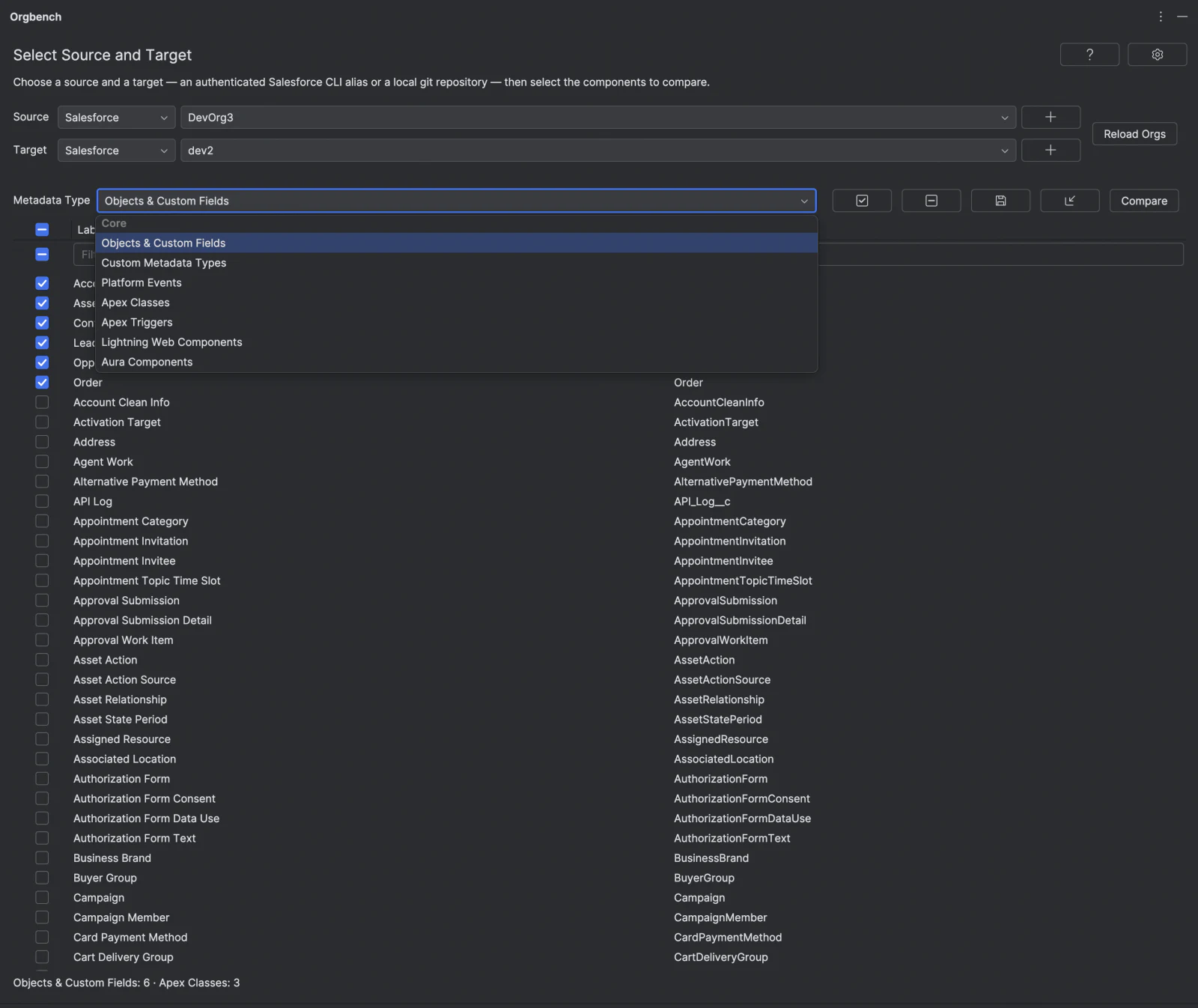
- Select Source. The Source and Target dropdowns support type-to-search: with a dropdown focused, type a case-insensitive alias prefix to jump to matching aliases. Pick a Metadata Type from its dropdown (Objects & Custom Fields, Custom Metadata Types, Platform Events, Apex Classes, Apex Triggers, Lightning Web Components, Aura Components, Visualforce Pages, Page Layouts, or Flows); the plugin loads customizable components of that type into a filterable table, excluding namespaced ones by their own name — except the seven subject types (
CustomField,CustomObject,PlatformEvent,ApexClass,ApexPage,CustomTab,RecordType), whose namespaced components are listed too, as a Permissions only or Tracking only row; managed-package objects are listed under Objects & Custom Fields so that their unmanaged fields can be selected, and — since task 16 — so that their own CRUD can be selected too, as a Permissions only row that carries no document. The dropdown is grouped by metadata category and lists only the categories you enabled in the settings; out of the box only the Core category is enabled, so the list is exactly the one above. Enabling a further category adds its types under their own group heading; fifteen categories are available beyond Core — Objects & Fields, UI & Navigation, Code, Automation, Security & Sharing, Integration & Auth, Service Cloud, Experience Cloud, Analytics, Sales Cloud, Email & Templates, Localization, Mobile, Industries and Revenue Cloud — and together they carry 177 further metadata types plus, for Revenue Cloud, 33 configuration records rather than metadata types, so with every category enabled the dropdown offers 220 items in sixteen groups. The Revenue Cloud category is switched off out of the box. Typing in the dropdown searches those labels by substring in the IntelliJ plugin unconditionally, in the VS Code extension only when the combined list exceeds 11 types. If the type you were looking at belongs to a category you just switched off, the screen moves to the first type still on the list rather than showing rows of a type the dropdown no longer offers. Custom Metadata Types (__mdt) and Platform Events (__e) are object-form definitions listed by their name suffix; their fields are compared and deployed under Objects & Custom Fields like any other object's fields. Type a case-insensitive fragment in the Label or API Name filter cell to match that column anywhere in the value, not just its start (leading and trailing*are optional and ignored); check individual rows, use the header checkbox in the Select column for select-all-visible, or use Select All and Clear, which apply only to the currently visible, filtered components. The selections you make across metadata types accumulate into one session manifest — switching Metadata Type does not discard a prior type's selection, and a summary line reports how many components are selected per type. - Select Target. Different aliases are still rejected if they resolve to the same underlying org ID.
- Select at least one component and choose Compare. Source and target metadata are retrieved into separate temporary projects.
- Review the
Select,Type,Component,Change, andDiffcolumns. A field row whose target object is missing becomes selectable once the table also carries that object's deployableCustomObjectAddrow; you still have to select that row too, or the deployment is rejected before it starts. CustomCustomObjectrows are deployable; a standard object contributes aPermissions onlyrow instead, carrying its CRUD and no metadata document, because only custom objects can be deployed as metadata. - Each column filters independently from a filter row beneath the headers. Type a case-insensitive fragment in the Type or Component cell to match that column anywhere in the value, not just its start (leading and trailing
*are optional and ignored). Use the Change multi-select to pick any subset ofAdd,Update, andNo change; by default onlyAddandUpdateare checked. The Select column's filter cell is a tri-state checkbox: checked shows only selected rows, unchecked shows only unselected rows, and the greyed (indeterminate) default applies no selection filter. The separate header checkbox still selects or clears only visible, eligible rows and becomes indeterminate for a partial visible selection. - Use Back to close the comparison and return with the current Source, Target, per-type component catalog, and session manifest preserved. Alternatively, select fields, choose Do not transfer permissions, Additive permissions, or All permissions from Permissions transfer, and choose Next. In Do not transfer permissions, confirm the source, target, and metadata-component count before deployment; cancelling the confirmation leaves the review unchanged. In Additive permissions or All permissions, Next instead opens a container-selection screen listing every eligible container with its Existing/New presence column, filterable through the Presence column's multi-select (both shown by default); Select All/Clear apply only to the currently visible, filtered containers. Deselect any selectable container to exclude it, or Back to return to the review. Choosing Next there is the confirmation step for the permission path.
- During comparison or deployment, IntelliJ shows a cancellable background task. Cancel stops new work and asks the active CLI process to terminate when possible. Cancelling does not cancel the Salesforce deployment job itself: it stops the local CLI process, and a deployment already submitted to Salesforce may still run to completion in the org minutes later, even though the plugin reports the operation
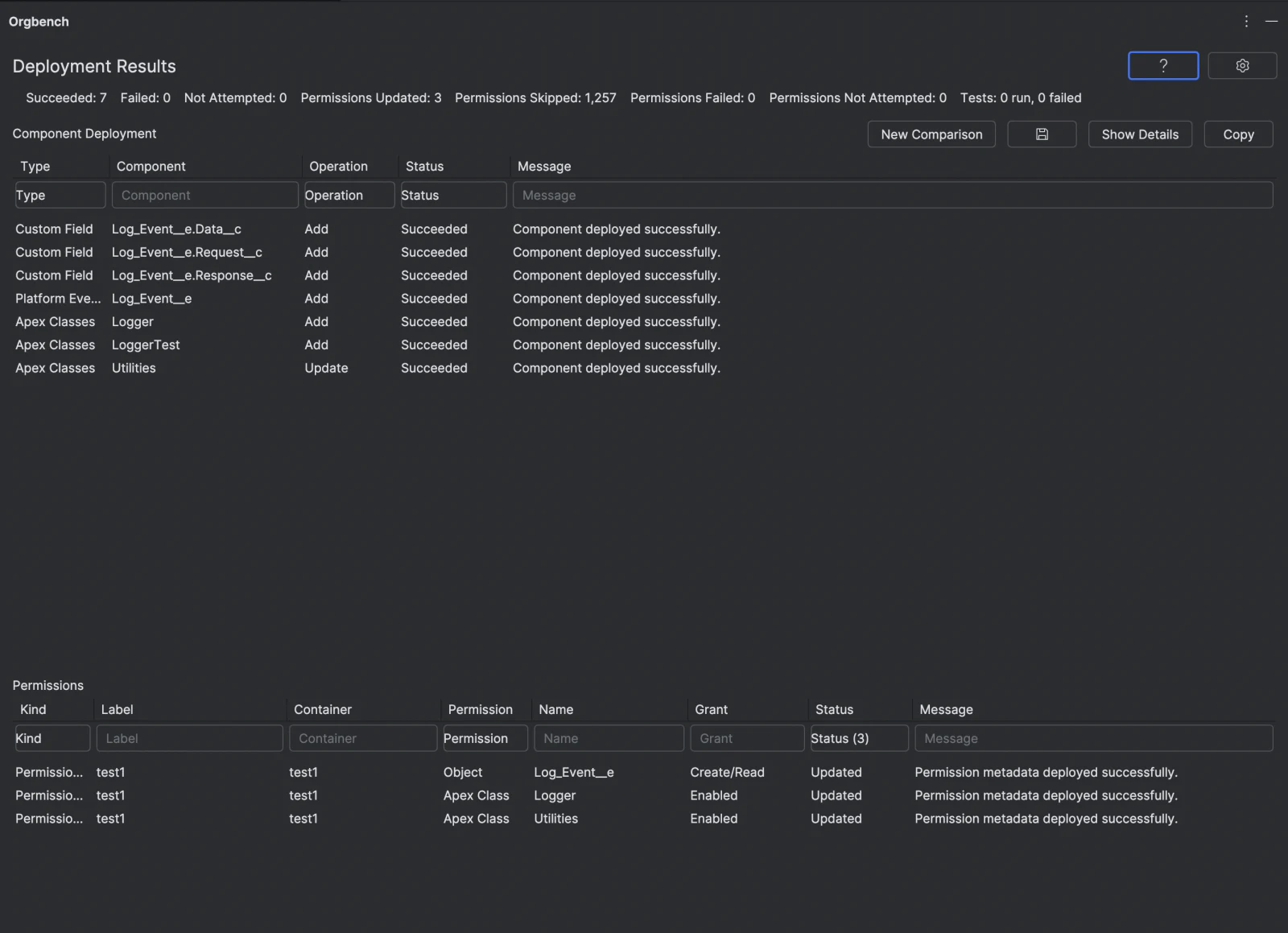
Failed … cancelled. - Read the component and permission result tables. In the permission result table, the Status column filter hides
Skippedrows by default; checkSkippedin that column's filter to reveal them alongsideUpdated,Failed, andNot Attempted. Show Details and Copy expose only sanitized diagnostics. New Comparison returns to a fresh alias selection.
Git Source and Target
Each side of a comparison is chosen independently: a Salesforce org or a local git repository (an absolute path plus a branch). All four combinations work — org to org, org to git, git to org, git to git. A repository side is read through the SFDX layout declared by its sfdx-project.json: every packageDirectories entry is scanned in file order, and on a duplicate component the first entry wins. A source repository without sfdx-project.json is rejected; a target repository may be empty or not yet an SFDX project, in which case the plugin creates a minimal sfdx-project.json and a force-app/main/default/ skeleton inside the same commit. A target repository that already has an sfdx-project.json the plugin cannot parse is a hard error instead — the skeleton never overwrites an existing manifest.
If the folder picked as the target failed inspection — most commonly because it is not a git repository yet, but the same button also appears if the inspection failed for another reason (a timeout) — an Initialize a Git repository here button appears next to it, as long as the location is still safe to run git init in and git itself runs on this machine. Which paths are eligible is decided entirely by the core: a plain filesystem check for a .git entry anywhere in the folder or its parents and for a bare repository at any of those levels, plus a git version probe whose exit code alone says whether git works here — never a parse of an error message; a machine where git cannot run at all fails that probe and is offered no button, because pressing it could only fail. When the probe or the toolchain markers are why the inspection itself failed, the refusal says so: Git is not usable on this machine. Run 'git version' in a terminal and install or repair git until it prints a version., followed by the same sanitized reason the toolchain itself gave, instead of claiming that the folder is not a repository — the same message and the same action for both a broken toolchain and git being entirely absent from the machine (no executable at all), because both are fixed by the user the same way. Only the target side is ever offered the button — an empty repository has nothing to compare from as a source — and the button is hidden again while an inspection or initialization request for that side is in flight. Confirming shows the full path and creates nothing beyond the .git directory itself: no commit, no branch checkout, no push, and the initial branch name is left to your own init.defaultBranch rather than a name the plugin picks.
Branch reading follows one rule: the current branch is read from the working tree, so uncommitted edits are part of the comparison, while any other branch is read from the git objects. The branch dropdown lists local and remote branches; picking origin/foo as a target means "create or use the local foo from it".
Deploying to a repository writes the selected components into the layout, stages exactly those paths and makes one commit — the deploy ends in a local commit, pushing is up to you, and the plugin never checks out a branch in your repository: a branch other than the current one is written through a temporary git worktree that is removed afterwards, and when the target branch is the current one only the written paths are committed, so unrelated modified files stay out. The "+" button next to the branch dropdown names a new branch, and that branch is created only by the deploy commit — cancelling the session leaves nothing behind. Deploying a bundle (LWC/Aura) to a repository target can delete files: a file left over inside that bundle's directory from a previous version is removed, and the deletion is part of the same commit.
With a repository target there are no deploy modes and no Apex test screen: the write is atomic by construction and the Salesforce CLI is not involved at all. Dependency auto-selection needs the Tooling API and is therefore unavailable for a repository source, with one exception: when the source is an org (whether the target is an org or a repository), a Page Layout's own dependency on its custom fields is read straight from the layout XML and auto-selected without the Tooling API. When the source itself is a repository, this offline layout auto-select is unavailable too, exactly like every other dependency. Two selection rules need no Tooling API at all and therefore work with a repository source as well: a field row whose object is missing from the target auto-selects that object's Add row, and checking that object's Add row auto-checks the object's own field rows. The review screen still warns about every other Tooling-sourced dependency it cannot compute for a repository source. Permission transfer does work with repository sides — Profile and Permission Set documents are read from and written to profiles/ and permissionsets/ files in the same commit, and a Profile file is only ever updated, never created.
GitHub endpoints are not yet supported: the entry is visible but disabled, and the core rejects it.
Session Export and Import
Export Session writes what the current session has selected so far to a JSON scenario file (default name session.json). The button itself is a save icon on all five screens, not a text label — its tooltip and accessible name are Export Session…. The button is on five screens — object selection, component review, Apex test selection, permission container selection, and results — and each of them writes what is known by then: the two endpoints and the comparison manifest from the selection screen (including the checkboxes of the type you are looking at right now, which are committed into the manifest first); the checked comparison rows and the permission transfer mode from the review screen; the checked Apex test classes from the test screen; the checked permission containers from the container screen; and the deploy mode that actually ran from the results screen. The whole file is still serialized and written by the plugin core, exactly like the manifest export — but unlike the manifest export, the core does not already hold what goes into it: the client shows a save dialog and hands the core the path and the live marks of the screen the button was pressed on, because that is the only place those marks live before you deploy or finish the wizard.
The file is meant to be replayed later against a disposable org, so it deliberately does not snapshot the comparison itself. There are no difference rows, no statuses and no attribute values in it — a replay has to run the comparison again, because a snapshot of the differences would go stale the moment either end changes and would then be wrong while still looking green. Document edits are not in it either: an edit lives inside its own comparison session and dies with it.
Nothing secret reaches the file by construction — only metadata names, org aliases, branch names and modes. A git end is written as the repository directory's last path segment plus the branch name, never as an absolute path, exactly as everywhere else in the plugin.
Two conventions matter when you read the file. An absent field and an empty one mean different things: a missing apexTests means the test screen was never reached, while "apexTests": [] means it was reached and no test was checked — a real deployment without Apex tests. And deployMode travels with deployModeIsFinal: on the test and container screens the mode is still provisional and the wizard's final button can overwrite it, so only the results screen marks it final. The file carries its own version, independent of the plugin's protocol version.
Export is refused, with a reason naming what to wait for, on every screen that has nothing to write: while orgs or components are loading, while the comparison is running, while a deployment is running, and on the error screen. An empty comparison manifest on the selection screen is refused too, because a scenario without a single component is not a scenario.
Import Session…, its tooltip and accessible name identical in both clients, is a button on the object selection screen that reads a scenario file back in — a version-1 or version-2 file, either one written by Export Session or handed to you by someone else. The format moved from version 1 to version 2 to add a field naming the session's own current screen; a version-1 file, which has no such field, is still read without any refusal. Importing does not start anything and does not go anywhere: you still walk the wizard yourself — pick Compare, move on to the review screen, and so on — and each screen shows its marks already checked when you reach it, the same way the Apex test screen already checks a preselected candidate. What is restored, screen by screen: both endpoints and the comparison manifest, applied immediately on import; the checked comparison rows and the permission transfer mode, applied when the review screen is built; the checked Apex test classes, applied when the test screen is built; the checked permission containers, applied when the container screen is built. Every one of these marks is applied once per set — the same rule as preselected test candidates — so a mark you uncheck afterward does not come back just because the screen is rebuilt for another reason. Import does not run the comparison, does not move you past the selection screen, and does not touch either org beyond the ordinary source-org component listings the file's own manifest is checked against — it is not a replay, only a set of marks waiting for you to reach their screens yourself.
The deploy mode in the file cannot be pre-selected, because there is nothing to select it into: the review screen has no deploy-mode switch, only three buttons — Validate only, Deploy, Best-effort deployment — and each one starts a deployment the moment you click it, so none of them may be the default (pressing Enter must never start a deployment). The recorded mode is therefore only shown as a text hint next to the deploy summary (Scenario suggests: …) and never pressed on your behalf. The permission transfer mode is different: it is a real setting, and importing restores it for real.
A name the file carries but the plugin no longer accepts — the component was renamed, deleted, or changed type since the file was written — does not fail the import. Each unaccepted name is listed, one line per name, on the screen where it turned out to be unaccepted: a manifest member missing from the source org's listing is reported on the selection screen, in the same import summary banner manifest import already uses; a comparison row the file selected but the current comparison does not have is reported on the review screen, because that can only be known once the comparison has actually run; an unmatched permission container is reported on the container screen the same way.
The endpoints work the same way. An alias the file names but your local CLI does not have is not an error either — that endpoint is simply left as it was, and the alias joins the same list of unaccepted names. A git target is never restored at all, and that is not a gap: the file, like every other output of the plugin, carries only the git repository directory's last path segment and the branch name, never the absolute path, so there is nothing to point the plugin back at — a git endpoint stays whatever it was before the import, with a warning saying so. The org-to-org pair restores in full; a git endpoint you still choose by hand.
The comparison manifest is only applied when there is a source org to check its names against — either the source the file itself just restored, or one you had already selected before importing. When neither is available, the manifest is left exactly as it was, with a warning explaining why, rather than filling the selection screen with names nobody has verified against a real org; import the file again once you have picked a source.
Import is refused, the same exhaustive way export is, from every screen except object selection — there is nothing sensible to import into mid-comparison or mid-deployment.
Session Export and Session Import are both among the advanced features reserved for the paid tier described under Licensing below — together they absorbed the manifest export/import gate, since the pair is a superset of what that older feature did. Like every other feature in early access, nothing is gated today, so both buttons write or read the same file for everyone regardless of license state; a refused license verdict returns the same plain-text reason as any other refusal on this screen.
Comparison Rules
Components match by metadata type and API name (fields additionally by their SObject Type). The plugin shows:
Addwhen the source field is absent from an existing target object;Updatewhen a matching field differs in a supported attribute;No changewhen supported attributes are equal;- no row for target-only fields, because the plugin never deletes fields.
The Change multi-select controls which source rows are visible: check any subset of Add, Update, and No change. It defaults to Add and Update checked, so No change rows are hidden until you check that value. A No change row is never a metadata deployment candidate. It becomes selectable only in Additive permissions or All permissions mode, and returning to Do not transfer permissions immediately deselects all such rows.
Updates compare these attributes in deterministic order: type, formula, default value, lookup or master-detail target, length, precision, scale, and label. A short diff is rendered source-to-target, for example Length: 40 -> 80; Label: Old -> New.
Namespaced metadata is ignored. The rule is about the component's own name: a namespaced field such as namespace__Field__c never has its DEFINITION compared or deployed on any object, and neither does a namespaced list view, layout, Apex class or tab; since task 16 a namespaced component of exactly the seven types that carry a permission — CustomField, CustomObject, PlatformEvent, ApexClass, ApexPage, CustomTab and RecordType — does get a comparison row, because a row is how its permission is selected; a namespaced list view or layout still gets none, because neither type carries a permission of its own. For a Layout, that name check is a label-prefix test with no other signal on a git target: a layout that truly belongs to a package but whose label carries no namespace prefix is treated as unmanaged there, indistinguishably from a layout an admin actually added. A managed-package object is a different question. namespace__Object__c already exists in every org that installed the package, exactly as Account exists in every org, so the plugin treats it like a standard object: its definition is never compared and never deployed — it gets a Permissions only row, which carries the object's CRUD and no metadata — while the unmanaged components an admin added inside it — custom fields, list views, validation rules, layouts and the rest — are compared and deployed like any other object's. That is why managed-package objects appear in the object list: they are the only gate through which their unmanaged fields can be selected. The MVP does not try to detect a packaging org in which that namespace is under development. Standard fields are not copied either — their definitions never travel; since task 16 they do get Tracking only rows, which carry field-level security and the two history toggles and nothing else.
When an object is absent from the target, its source fields are displayed as Add with Target object is missing. Those field rows become selectable once the table also carries the object's deployable CustomObject Add row; otherwise they stay disabled. Selecting the field still requires selecting that object row too: if you select such a field without selecting its object row, the deployment is rejected before it starts with Missing target object 'X__c': select its object row or deselect its fields.
CustomObject metadata is compared like any other type — Add, Update, and No change rows are computed the same way. Only a custom object (__c) gets a metadata definition row: a standard object selected in Objects & Custom Fields contributes its custom fields plus its own Account-style row, but that row carries Permissions only — its CRUD, never a metadata document — mirroring the rule that standard fields are never copied as metadata either, only their history toggles.
Custom Metadata Types and Platform Events are the same object form on the Metadata API (a CustomObject component), so they behave exactly like custom objects: a source-only __mdt or __e object can be created in the target in the same deployment as its fields. A Custom Metadata Types row that is not a __mdt object is disabled with Only custom metadata types can be deployed., and a Platform Events row that is not a __e object with Only platform events can be deployed. Custom Metadata records (Type.Record) are covered too, as Custom Metadata Records under Objects & Fields: unlike the object definitions above, a record is compared as the whole document rather than attribute by attribute.
Apex Classes and Apex Triggers are a code type: each component is its source body (.cls/.trigger) plus an XML sidecar carrying apiVersion and status. Comparison covers the body text and the sidecar attributes together, so an Update row can come from a body change, a sidecar change, or both. The row diff view keeps the two documents apart: the body and the sidecar each get their own window, and which of them a double-click opens is described in Row Difference View below. Visualforce Pages have the same shape: the .page body plus a .page-meta.xml sidecar carrying apiVersion and label.
Lightning Web Components and Aura Components are bundles: one component is a whole directory (lwc/<Name>/, aura/<Name>/), so they are compared by composition rather than by attributes. An Update row means the set of files or the content of at least one file differs, summarized as N file(s) added, M removed, K changed (terms that are zero are omitted); the row diff view shows the whole bundle as one concatenated document, each file preceded by a === <relative path> === separator line. Deploying a bundle replaces that bundle in the target completely: a file that exists only in the target's version of the same bundle is gone after the deployment, because the Metadata API treats a bundle as one indivisible component. The plugin still never deletes a target component: a bundle that exists only in the target produces no row and is never touched.
Page Layouts are compared in one of two modes, chosen by the Page Layouts setting. In the default mode, Compare and deploy whole layouts, one row is one whole layout: the two documents are compared in full — the only normalization is the line ending — and any difference at all reports as Definition changed. Deploying such a row replaces the target layout with the source document, so a section, a field or a related list that exists only in the target's copy of the same layout is gone after the deployment; that is the Metadata API's own semantics for a layout, and the row that carries it is visible in the table before you deploy. In the second mode, Select fields and related lists, Page Layouts are decomposed: one row is not a whole layout but a single layout element — a field of a section or a related list. In that mode a layout that exists in the target produces rows only for the elements that differ, and matching elements produce no row at all; an element that exists only in the target never produces a row and is never removed. Position is never a difference: the plugin transfers a new element into the position its source neighbours dictate, but it never re-orders elements that already exist in the target. A selected related-list Update row replaces the whole related list with the source version — its columns, sort field, sort order and buttons are all overwritten, so anything present only in the target's copy of the same related list is gone after the deployment; everything else in the layout — the layout's own buttons, quick actions, the highlights panel and the mini layout — is preserved by construction: existing lines are never rewritten. Both modes agree on the rest: a layout that is missing from the target produces one Add row for the whole document, a layout that exists only in the target produces no row and is never touched, and Layouts of standard objects are compared and deployed. The row difference view shows the whole layout document of both orgs, the same document for every row of that layout. In the element mode a layout whose own name contains :: is excluded from the comparison with a visible warning, because the plugin uses :: to address layout elements. A layout whose metadata cannot be parsed is not softly excluded: reading that layout's metadata fails the operation outright, the same way an unreadable metadata file fails any other type.
Types outside the core set — every type of the fourteen additional metadata categories (Revenue Cloud carries records, not documents, and is not compared in this release) — are compared as the whole document, not attribute by attribute: one row is one component, and the row difference view shows both documents in full. Their component name is the fullName the Salesforce CLI reports, so a tab of a custom object is listed as Invoice__c and a quick action as Account.New_Note. Namespaced components of these types are excluded like every other namespaced component, decided by the child's own name rather than by its object: Account.acme__View is excluded and acme__Packaged__c.My_View is not, and a name that is a custom object's own API name is not mistaken for a namespace prefix. Two of these types are the exception, because they carry a permission of their own: a namespaced Custom Tab or Record Type is still listed, as a Permissions only row whose tab visibility (or record-type visibility) you can select even though its definition never travels. Types that Salesforce stores inside an object's folder — list views, record types, validation rules, field sets, compact layouts, business processes, indexes, sharing reasons and web links — are listed under a composite Object.Name key such as Account.AllAccounts or Invoice__c.My_View, and their file lives in that object's folder. Children of a standard object are compared and deployed like any other child, because a list view or a validation rule is the admin's own configuration rather than the object definition; the standard object's own definition is still never deployed. A managed-package object is treated the same way, for the same reason and with the same limit on its own definition. Selecting a child of a custom object that is missing from the target auto-checks that object's definition Add row as a visible dependency — you see it in the table before the deployment and you can uncheck it. The object's own custom-field rows are auto-checked right alongside it, because a list view's columns or a validation rule's formula name those fields, and the target rejects the child if the object is created without them; each field row can be unchecked on its own, just like the object row. Like the offline layout auto-select, this widening runs when the source is an org; with a repository source neither the object's row nor its field rows are added automatically — select them yourself. Types that Salesforce stores many-to-a-file — assignment rules, auto-response rules, escalation rules, the three kinds of sharing rule and custom labels — are listed one row per rule or label, not one row per file: a rule is keyed Object.Name such as Lead.Web_Leads, and a custom label by its own name, because a single CustomLabels file holds every label in the org. For these types the packaging rule above does not apply: gating is decided by the whole container name — the object name for a rule, the label's own name for a custom label — rather than by comparing a child segment against its object. The three sharing-rule types share one physical file per object and are told apart by the element that carries them, so an owner rule and a criteria rule of the same object are two independent rows that deploy together into one file.
Permission Sets and Permission Set Groups are two of those types, added to the Security & Sharing category. A Permission Set row is the whole .permissionset-meta.xml document, so deploying it moves everything that document carries — object and field permissions, class and page access, tab and record-type settings, and also the user permissions, the license and the application visibilities that a permission transfer never touches. That is a deliberate widening: the permission transfer merges six kinds of permission into a container, while a Permission Set row replaces the container itself. A Permission Set Group row is its own document too, and what it carries is a list of the permission sets the group contains, plain and muting alike. Namespaced permission sets and groups are not listed and never deployed, exactly like every other namespaced component, so an org whose groups mostly belong to installed packages shows only the unmanaged ones — a source org with twenty-one groups can legitimately list six.
Flows are always compared as a whole document: one row is one whole flow, with no mode to choose. Four header attributes are shown as a short diff — label, status, API version and process type — and any other difference in the document is reported as Definition changed. Version numbers are never compared, because the flow document does not carry one: the Metadata API decides which version it hands over, so the active version of a flow is compared, and when a flow has no active version its latest version is compared instead. An Update row can therefore mean that a different version is active in each org rather than that somebody edited the flow. The <status> value is transferred verbatim, so deploying a flow whose source status is Active activates it in the target; that status is visible in the row before you deploy — unless the row's document has been edited, in which case the row is marked Edited and it is the edited document's status, not the one shown in the row, that deploys — and Validate only is available as a dry run. Deploying a flow creates a new version in the target and never deletes or deactivates an existing version. A flow that exists only in the target produces no row and is never touched. This comparison has a known limitation for a git source compared against an org target: the plugin only normalizes line endings, so any other formatting difference between the repository's copy of a flow and the org's own serialization — indentation, element order, manual edits — still reports as Definition changed, and deploying does not clear it, because the target org re-serializes the deployed document on its own terms; every redeploy from that repository copy then adds another version to the target. The other three endpoint pairs are unaffected: org to org passes through the same Metadata API retrieval on both sides, so their serializations match by construction; org to git and git to git write exactly the retrieved or merged bytes, so the compared bytes are exactly the deployed bytes.
Dependency Auto-Selection
When you check a row in the comparison table, the plugin also checks every component that row depends on and that is missing from the target. The dependency data comes from the Salesforce Tooling API object MetadataComponentDependency, queried on the source org only; that object is a Salesforce Beta feature, so the plugin treats it as best effort.
The cascade also runs the other way for a new object: checking a new object's Add row also checks every custom-field row of that object, while checking a single field still checks only that field's object and not its sibling fields. Auto-checked rows are marked added as dependency together with the row that pulled them in, and you can uncheck any of them — the auto-selection is a suggestion, never a lock. Unchecking a row also unchecks the rows that were only there because of it; a row you checked yourself is never unchecked automatically. Dependencies are followed recursively, so checking one field can bring in its object and the Apex class they reference.
Only rows the target is missing (Add rows) are ever auto-checked: an Update or No change dependency already exists in the target and needs no transfer. A dependency the plugin cannot transfer — a standard component, a namespaced component, a managed-package object's own definition, or any component type outside the eleven the dependency graph covers (CustomLabel, RecordType, WorkflowRule, and the like) — is simply not auto-checked and never appears in the table. The one exception is a Flow dependency whose metadata name came from the Tooling API as its display name instead of its API name: it could not be matched automatically, so the row reports it, and you should make sure it exists in the target org or select it manually. Page Layouts are one of the eleven the dependency graph covers, but the Tooling dependency graph carries no layout references, so this feature never pulls a layout in as another component's dependency; a layout element's own dependency on a custom field is instead auto-selected offline, without the Tooling API, as described above. That offline auto-select also covers a whole-layout Add row: when the layout itself is missing from the target the comparison shows one row for the whole document, and that row carries the dependencies of every element it contains. A related list element is covered too: when the list is named {child object}.{lookup field}, the lookup field itself (if it is a custom __c field), every column of the list written as a plain custom field API name, and the sort field are auto-selected on the child object. A column written as a UI name (CONTRACT.NAME, OWNER_NAME) or as a person-account field (__pc) is left alone, and a standard related list — a name without a dot — has no dependencies at all. A Context Definition is the one type where the Add-only rule above does not hold: its offline auto-select (the same principle as the layout one, without the Tooling API) reaches the custom fields its document names in a hydration mapping and the custom objects it maps a context node to, on both Add and Update rows, because a field the target already has but that differs still has to travel for the hydration to read the right value. When the plugin cannot deploy such a field at all — its object does not exist in the target org, and that object is a standard one, so no cascade can create it — the row is not left out silently: it stays in the table, unselectable, showing its own reason and the name of the context definition that referenced it. A Permission Set Group also widens the session manifest itself: a permission set its document lists — the plain permissionSets entries and the mutingPermissionSets entries alike — that the manifest does not already carry gets a member added for it automatically, the same manifest-widening mechanism the object-child cascade above uses, so the set gets its own comparison row without you having to pick the Permission Set type yourself. Like that widening, this one runs only when the source is an org; with a repository source the manifest is never widened this way, and a permission set named only by the group's document gives no row unless you selected it yourself. Unlike Context Definition, the group's own cascade keeps to the ordinary Add-only rule above: checking the group's own row auto-checks only the Add rows of the sets it lists — a set the target is missing, and that the group genuinely needs created — never an Update row of a set the target already has, and every one of those checkmarks can be removed like any other. A set already present in the target needs no checkmark to keep the group's reference to it: what the target actually has is asked again, from the target itself, right before the deployment (see below), so the reference to an existing set survives the deploy without that set's own document ever being sent — deploying it would replace the whole existing Permission Set in the target, user permissions, license and application visibilities included, from a single checkbox on the group. The cascade runs one way only: checking a permission set never checks the groups that contain it, because a group is a separate component rather than the set's container. A namespaced permission set the group names — one belonging to an installed package — is never widened into a row, exactly like every other namespaced component; nor is a name the source org itself does not have.
If the Tooling API object is unavailable — the Beta feature is off in the org, or the query fails — the comparison still completes exactly as before: no Tooling-sourced row is auto-checked and the screen shows Dependency auto-selection is disabled with the reason. The two offline rules still apply — a field still pulls in its missing target object, and checking a new object still checks its own field rows. The plugin never blocks a comparison because of this feature. Because the Salesforce dependency graph has known gaps, a missing edge does not prove there is no dependency; the deployment validation stays the source of truth.
The comparison may pull extra components into itself to resolve a dependency; the screen lists them under Added to comparison as dependencies. That expansion lives only in the comparison — Back returns your original selection screen untouched. Only the rows something you asked for actually needs are shown: a component pulled in this way gets a row when it is reachable over dependency edges from a row of your own selection, and that row's summary then names the row that required it. An object that ends up with no rows at all drops out of that list as well, so the list never sends you looking for a row that is not in the table. Everything else the expansion downloaded stays out of the table — to work on such a field, select its object on the selection screen explicitly.
Row Difference View
Double-click any row in the comparison table to open a side-by-side diff of the
component's Salesforce DX source-format file: the source org on the left, the
target org on the right. The view is built from the metadata already retrieved
for the comparison, so it makes no additional org calls. For an Add row (or a
row whose target object is missing) the right pane shows that the component is
not present in the target. Complex components such as a CustomObject show only
their object-level source (the source format keeps each field in its own file),
never an enumeration of their fields.
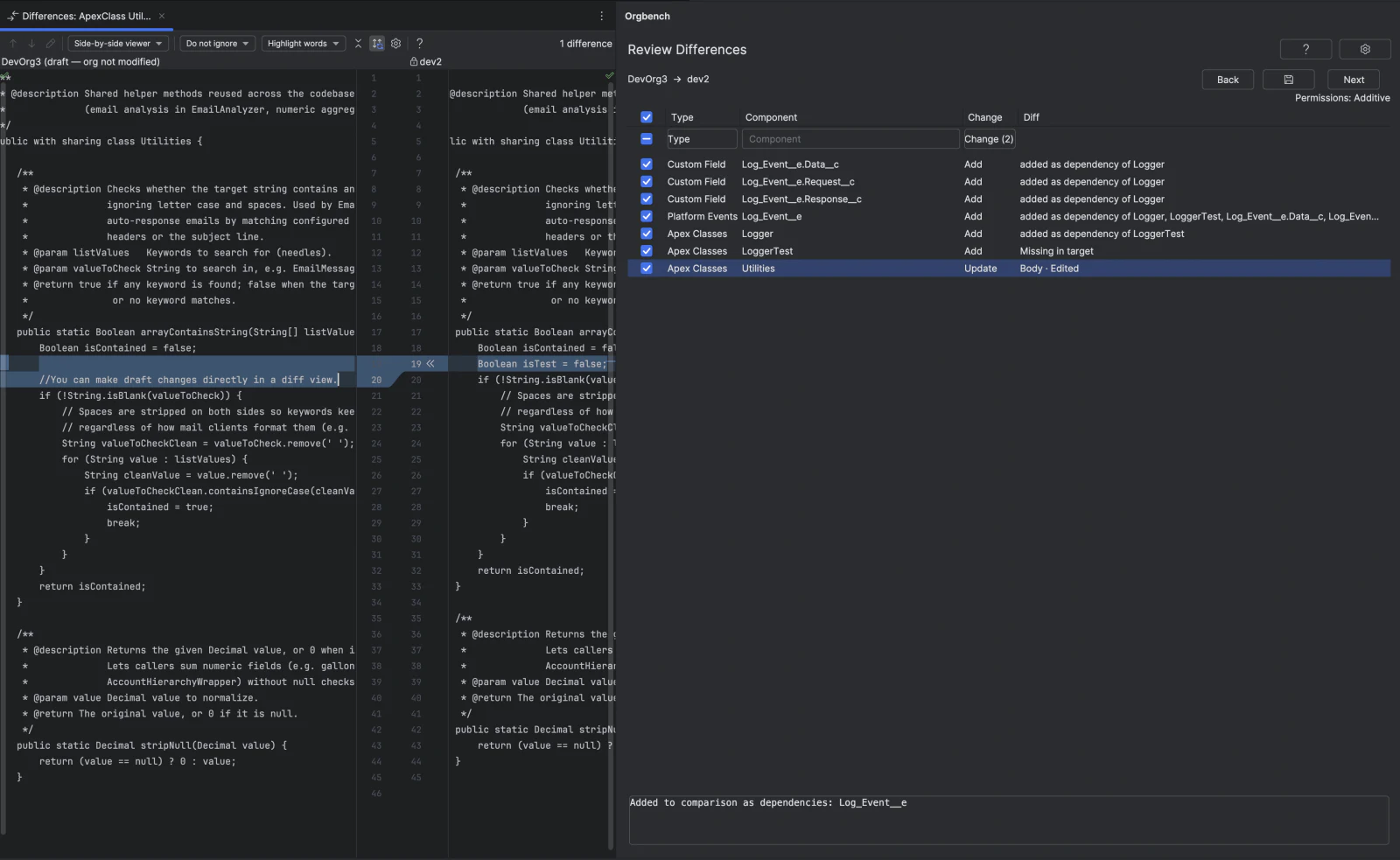
The three code types — an Apex class, an Apex trigger and a Visualforce page —
are two documents each, the body and its *-meta.xml sidecar, so a double-click
on such a row can open two windows. The sidecar window opens when the row has
attribute differences — which is what a change to a sidecar attribute produces:
the API version, an Apex class or trigger status, a Visualforce page label — and
the sidecar itself could be read from at least one of the two orgs; the body
window opens whenever the sidecar window does not, or when the body itself
differs as well. A row that differs only in its API version therefore opens one
window — the sidecar; a row that differs in both opens two, the sidecar first
and the body focused over it; an Add row, a No change row and every row of every
other type open exactly the one window they always did. The rule never resolves
to zero windows: where the sidecar window is not opened, the body window is.
Both panes of the sidecar window are read-only in both clients, which is the
editing rule below made visible: an edit never replaces the sidecar. Deploying
the row still sends the sidecar — that is how an API version difference reaches
the target at all.
The left pane of the Row Difference View is editable in both clients while the
Allow editing metadata in the diff view setting is on
(orgbench.allowSourceEditing in VS Code), so you can narrow what the
deployment sends down to your own increment instead of the whole current
document of the source org. Which rows offer it is decided by the core, not by
the client, and travels with the row, so both clients agree by construction.
Six rules bound that:
- What can be edited is the document that belongs entirely to one row: a
metadata XML document such as a custom field, a custom object or a whole page
layout, or the body of an Apex class, an Apex trigger or a Visualforce page.
Everything else opens read-only — the
*-meta.xmlsidecar of those three code types, a Lightning or Aura bundle (the window shows a synthesized concatenation of the bundle's files, which exists on no disk), a rule or a custom label that shares one file with its siblings, and a single layout element in the Select fields and related lists mode, where a row is a fragment of a document rather than a document. A row with no change to deploy and a row blocked for any reason are read-only too. For the three code types an edit replaces the body alone, so it can change neither the API version nor whether a trigger is active. Deploying the row does send that meta file; what an edit cannot do is change it. - An edited row is marked
Editedin the comparison table, and the mark comes from the core rather than from the editor, so it is always visible before the deployment. - Editing the document of an object that does not exist in the target yet sends that document as you edited it. Without an edit such a row is created from a minimal synthesized document instead, because the full source document names layouts, list views and buttons the target does not have yet; editing the row hands that choice to you, for that row and that comparison only.
- An edit is always removable:
Revert editin the row's context menu of the IntelliJ plugin, and the Orgbench: Revert Edit command in VS Code, give the deployment the source content back; text byte-identical to the original clears the edit by itself. Retyping the original is not always byte-identical, though, so the explicit action is the reliable one in either client: the IntelliJ editor normalises line endings, and the VS Code editor, while it keeps the endings it loaded, still folds a body that mixes them into the dominant one and drops a leading byte-order mark. - An edit lives only inside the current comparison: it is stored in that comparison's private temporary folder and disappears with it when you press Back or New Comparison. It survives neither an IDE restart nor a new comparison.
- An edit never widens what gets deployed: it does not select a row, it does not make a blocked row deployable and it creates no rows. A component reaches the target exactly when its row is selected, as without the feature.
An edit is picked up while the window is still open — you do not have to close
it. About a second and a half after you stop typing, the edited document is sent
and the row picks up its Edited mark; anything not yet sent is sent now
when you press Next or a deploy button on the comparison screen, before the
confirmation dialog and before the deployment starts. Closing the window still
sends it too. In VS Code the draft is saved as you type, so its tab never shows
unsaved changes and VS Code never asks whether to keep them — that save is local
to the extension and has nothing to do with the deployment. What tells you the
core has taken the text is the Edited mark on the row; when the core
refuses it, the reason is shown as a warning. Typing the original text back
reverts the edit, and Revert edit on a row whose window is still open resets
that window back to the original without closing it, so the edit can be started over.
Reopening the window shows the already edited text, so an edit can be continued;
the right pane is never editable. While the left pane is editable, its title
reads <alias> (draft — org not modified) rather than just the source org's
alias, so it never looks like you are editing the source org directly — in VS
Code that text is part of the diff tab's own title, because the two panes of a
vscode.diff editor carry no captions of their own. The draft is held in memory
by the extension and never written to your disk; it goes away with the
comparison.
Progress Details
While an operation runs, the status text is joined by a live progress line: a spinning indicator, the current phase, the step counter where the number of steps is known, and the elapsed time since the operation started, followed by a bar that fills when the step count is known and runs indefinitely when it is not. The facts come from the core — it is the only layer that knows which Salesforce CLI command is running — and the line carries metadata type names, org aliases and counters only; CLI output is never shown there.
Examples: Loading objects from dev · 4s, Querying dependencies — 3 of 7 · 12s,
Deploying the package · 1m 8s. The step count is a live estimate: while
dependencies are queried it can grow as the core splits an oversized batch, so 3 of 7
may be followed by 4 of 9.
Some steps run without leaving the screen you are on. The screen that started such a step stays where it is, disables its buttons and shows the same live line, and Cancel stays available. There are four such steps today: creating an org alias with the + button on the selection screen, listing the Apex test candidates after Deploy on the comparison screen (when the package contains Apex or Flow and the target is an org), matching permission containers after Deploy on the comparison screen (when the permission transfer is not "Do not transfer permissions"), and matching permission containers after you confirm the tests on the Apex test screen.
The line is always shown, in both clients, and there is no setting that turns it off. If no progress event ever arrives (a core that does not implement the channel, or a client that asked for it to stay off at startup), the screens behave exactly as they did before: the static status text and the Cancel button.
Settings and Session Log
The permission transfer mode is a setting, not a control on the review screen. In the IntelliJ plugin it
lives in Settings | Tools | Orgbench, reachable in one click from the gear button in the tool
window; in the VS Code extension it is orgbench.flsMode, reachable from the gear icon in the
view title. Because it is a setting, it no longer resets with every new comparison: a mode you
chose once stays chosen. The review screen therefore always shows what the next deployment will do
as a read-only line, for example Permissions: Additive. The deployment mode is not a setting at all —
the last step of the wizard offers three buttons and you choose the mode by pressing one of them;
see Deployment Behavior.
The core writes a session log — one JSON object per line — that answers two questions: how long an
operation took and what it was made of, and what exactly failed when you need to file a bug report.
Each line carries a timestamp in two forms — the local time of your machine first, written as
2026-08-18T14:24:19.332, and the same instant in Unix milliseconds after it — an event kind and an
operation id. The line that answers "where did the two minutes go" is operationFinished: it
carries the operation kind, its duration, how many Salesforce CLI calls it made and how many
milliseconds were spent inside them. A cli line records one sf invocation: the subcommand, the
target org alias, the duration, the exit code, the byte lengths of stdout and stderr, and — on
failure — the same sanitized diagnostic the UI shows. A deployment that finishes normally, even one
with rejected rows, is not itself an operation failure — the process's own exit code is 1 and
operationFinished reports it as a routine end — so a separate deployOutcome line, written for
every deployment and quick deployment right before the result screen, answers "which components were
rejected and why". At the Standard level it carries only the counts — total, succeeded, failed,
not attempted, and, when the deployment transferred permissions or ran Apex tests, those counts too.
At Detailed it additionally names every rejected or not-attempted row: its type, name, operation
and the same sanitized message the results table shows, and does the same for every permission-
transfer row that did not update its target — capped at 50 rows each, with the remainder counted
rather than dropped silently, because a package can carry hundreds of components. An
operationCancelled line covers two
distinct reasons and does not distinguish them in its fields: either the user chose Cancel, or
the core force-aborted the operation after its cleanup failed.
Allow editing metadata in the diff view is on by default in both clients; in VS Code it is
orgbench.allowSourceEditing, a key kept from the narrower setting it replaces so that a cleared
box survives the upgrade. It decides whether the left pane of the Row Difference View can be edited
for the rows that offer it at all — a metadata XML document, or the body of an Apex class, an Apex
trigger or a Visualforce page; a sidecar, a bundle, a container document and a layout element stay
read-only either way. Turning it off does not erase edits that
already exist — it gates the pane, not the deployment — so an existing edit keeps its
Edited mark and its Revert edit action. The two clients keep that action reachable
differently: in the IntelliJ plugin Revert edit is an item of the row's context menu and needs no
window at all, while VS Code reverts through the draft's own tab, so there a row that already
carries an edit reopens editable even while the setting is off. What the setting gates is therefore
the first edit of a row; a row already carrying one can be edited further either way. The value is
read when a window is opened, so a window already on screen keeps the form it was opened with.
Page Layouts is a setting of the same kind: it decides how a Page Layout is compared and
deployed. In the IntelliJ plugin it is a dropdown on the same settings page under Settings |
Tools | Orgbench; in VS Code it is orgbench.layoutMode, whose values are whole and
elements. The default is Compare and deploy whole layouts (whole): one row per layout,
compared over the whole document, and a deployment replaces the target layout with the source
version. Select fields and related lists (elements) turns on the element decomposition
described under Comparison Rules instead. The mode is a snapshot taken when you press
Compare: switching it while a comparison is already on screen changes nothing until the next
Compare, and a deployment follows the rows you are looking at rather than the current value of the
setting.
Metadata categories is a setting of the same kind: it decides which categories of metadata
types the Metadata Type dropdown offers. In the IntelliJ plugin it is a list of checkboxes on
the same settings page; in VS Code it is orgbench.metadataCategories, an array of category ids.
By default only the Core category is enabled, so the dropdown lists exactly the types the plugin
offered before the metadata-type expansion. Changing it takes effect on the screen you are already
looking at. Queues, public groups and roles are the three types Security & Sharing does not offer yet:
their documents carry a member list of the source org, and the plugin does not yet know how to create
such a component without it. Other types whose documents reference users or profiles are offered as
they are, and a deploy that names a user the target does not have fails that one component in Best-effort mode; in Validate only or All or nothing the whole package fails, as everywhere else.
Disabling a category does not clear a selection already made in a type it hides: that selection
stays in the session manifest and is still sent to Compare and Deploy, even
though the type itself is gone from the dropdown. A line below the manifest summary names every
such hidden type and how many of its components are still selected, and choosing Compare while
any such selection exists shows a confirmation listing those types and counts before continuing.
This is true of both clients, not only the IntelliJ plugin. Like every other non-Core category,
the Revenue Cloud category is switched off out of the box, and its items are configuration
records rather than metadata types; enabling it also reveals the Prepare Orgs command,
whereas leaving it disabled removes both its dropdown items and that button.
Three levels are available, chosen in the same place as the permission transfer mode (orgbench.logLevel in VS
Code):
- Off — nothing is written; neither the log file nor its folder is created, and the retention sweep that deletes older logs does not run either.
- Standard (the default) — every kind of record listed above.
- Detailed — the same plus the full Salesforce CLI argument list of each call. Detailed additionally records the SOQL request text, because it is part of those arguments, and for the same reason it records local file paths such as the retrieve manifest.
The log never records a token, and it records no response body either — with one deliberate
exception: when an operation fails, the log keeps
the same sanitized diagnostic the UI already shows, capped in length. For a failed Salesforce CLI
call that diagnostic quotes an excerpt of the CLI response; for a failure with no CLI call behind
it — a malformed package.xml, say — it is the message you see on screen. Otherwise only the byte
lengths of stdout and stderr survive, and every recorded argument passes the same redaction the
plugin applies to displayed diagnostics. Changing the level takes effect immediately, without
restarting the core process.
The file lives under the plugin's own temporary directory, in orgbench/logs, and is named
session-<timestamp>-<pid>.jsonl. The plugin keeps the five most recent session logs and deletes
older ones; it removes only files matching that name pattern and never anything else in the
folder. A session log is capped at 8 MiB, after which a final logTruncated line is written and
the session stops logging. The settings page shows the current path and offers Open Log Folder
and Copy Path; VS Code offers the same two as commands in the view's overflow menu. The file
appears with the first record, so a freshly started session with nothing logged yet has a path but
no file.
Deployment Behavior
Only the selected component XML is copied into a clean attempt directory. The plugin does not deploy complete object metadata or unrelated fields; deploying a CustomObject writes only that object's .object-meta.xml, never touching its existing fields or other components in the target.
Creating an object (an Add row of Custom Objects, Custom Metadata Types, or Platform Events) deploys a minimal object document synthesized from the compared attributes plus, for Custom Objects, the required nameField, instead of the source org's full file: search layouts, list views, web links, and action overrides reference components that do not exist in the target yet, and Salesforce rejects the whole object because of them. The compared attributes carry the object's own switches that the source document has — including Enable Feeds, Enable Search, Enable Sharing and Enable Bulk API — so a field that tracks feed or field history lands in the newly created object instead of failing with The entity: … does not have feeds enabled. A custom setting is the one object shape built differently: the plugin sends only customSettingsType, description, label and visibility for it — the org rejects others by name (Cannot specify: enableFeeds for CustomSettings) — and it has no nameField at all, so that document carries those tags and nothing else. This holds in all three deploy modes — every one of them builds the object document the same way. If a source Custom Object that is not a custom setting carries no nameField, the plugin refuses to package it instead of sending the full file: in Best-effort that one row is Failed with that reason and no deployment call is made for it, while the rest of the selection is still sent; in Validate only and All or nothing the whole deployment fails before any deploy call. An Update row still deploys the source file as it is, and the Row Difference View always shows the real source content of that object. An Add row whose document you edited in that view is the one exception, and it steps outside every rule of this paragraph: it deploys the edited document as it is, for that row and that comparison only. Nothing above is synthesized away for it — the sections that make a full object file fail on creation are still in it unless you removed them, a custom setting carries whatever tags you left in rather than only the four, and the nameField refusal does not apply either: the document is packaged and sent, and anything wrong with it comes back as that one component's rejection from the target instead of a refusal before the deploy: in Best-effort only that component fails, while in Validate only and All or nothing the target's rejection still fails the whole package, as everywhere else.
A Permission Set Group is the one type whose document the plugin trims before sending it. Right before the deployment — after any edit of yours and before the package is built — the plugin asks the target which permission sets it has and drops from the group document every permissionSets and mutingPermissionSets entry that is neither already there nor created by this same deployment. Against an org that question is a query over the org's own PermissionSet records, which report managed sets and their namespace exactly as the group document spells them; against a repository it is the set of permission-set files on the target branch — a brand-new branch created from a non-empty base answers with that base's own listing, not «none»; only an empty repository, or a brand-new branch created from an empty base, answers «none» — because the target's own listing of that category does not reach muting permission sets at all against a repository (only profiles/ and permissionsets/ are read there), a mutingPermissionSets reference is not trimmed at all against a git target, on the same «the source does not cover this category, so it is not cut» principle that already applies to a packaged name. A reference is kept for one of three reasons, in this order: the name is already present in the target; the name is created by this same deployment as another selected Permission Set Add row; or, as a last, fail-open belt that only fires when the target's own listing does not cover packaged sets — today that means only a git target, whose branch listing cannot tell a packaged permission set from any other — a name that carries a namespace prefix is never dropped, because a packaged permission set is present exactly when its package is installed and the plugin does not decide that. Against an org target that belt does not fire at all: the org's own PermissionSet query does cover packaged sets (measured on the owner's org — 401 records, covering all 39 references of the live RCA_Admin document, managed sets included), so there a namespaced name is judged exactly like any other and dropped when the target does not have it — closing the gap a live deploy exposed, where the org rejected the whole group with Cannot create Permission Set Group Components since the following permission set names are invalid: … because the previous, unconditional belt had kept managed references the target did not actually have. Everything else in the document is left byte for byte. The group's own row in the Message column of the results says how many of its permission sets were kept and names the ones that were not, so the trimming is never silent; the message states only how many names were kept out of how many and which ones — the plugin does not claim to know WHY a name was not found. A row whose document you edited by hand in the Row Difference View is not filtered at all — the same belt and the same reason as the object-definition placeholder — and the filter only ever runs after an edit has already been applied, never before. The extra question is asked only when the selection actually contains a group, and asking it does not change the progress line. If it cannot be answered, the group is not sent with a document the plugin could not check: in Best-effort that one row is Failed with the reason while the rest of the selection still travels, and in Validate only or All or nothing against an org target the whole deployment fails before any deploy call — against a git target the same failure stays componentwise in every mode, including All or nothing.
That trim still asks the target before the deployment, not after it, so a permission set that the trim kept because this same deployment was about to create it can still fail to create for a reason of its own — a live run against an org found exactly that: two Permission Sets rejected for unrelated reasons, and the group Failed right after them for referencing names that, by then, had not actually been created. Since that run, Best-effort against an org target answers with one extra, narrowly scoped attempt: if a PermissionSetGroup row came back Failed and its own document names a Permission Set that this same run left Failed or Not Attempted, the plugin rebuilds that group's document — the same trim, now excluding the names that did not make it — and sends only the affected group rows again, once, with --ignore-errors and nothing else (no Permission Sets, no permission containers, no Apex tests). The group's row then carries whatever that second attempt returned instead of the first, and its message says a retry happened and which names were excluded either way; if the second attempt itself never reached the target (a timeout, a cancellation), the row keeps its first result. This never happens more than once per group, never happens against a git target (which never makes a metadata deploy call for this in the first place), and never happens in Validate only or All or nothing, where a rejection is already meant to fail the whole package. It also never happens when the FIRST call itself never reached the target, or reached it but was rejected wholesale without naming a single component: neither outcome says anything about this particular group, so retrying would not be responding to the group's own failure.
A Context Definition is the second type whose document the plugin trims before sending it, and the rule is a different one: it removes what the target's own schema does not have. Right before the deployment — after any edit of yours, in the same place the group document is trimmed, and in all three deploy modes — the plugin asks the source org and the target org one question each: which fields the objects this document names actually have. The answer is a single query per org over that org's FieldDefinition, and it also says which of those objects exist at all, so no second question is needed. What is cut is the DELTA between the two answers, never «missing from the target» on its own: a hydration mapping is dropped when the pair of object and field it names is known to the SOURCE org and absent from the TARGET org, and a context node mapping is dropped when its object is known to the source and absent from the target. A reference the source org does not know either — a virtual context entity such as SalesTransaction, a relationship name such as Asset.Product2, or a typo in the source document itself — is left exactly as it is, because «we do not know it» is not «the target does not have it»; on the owner's own document that distinction is two thirds of the references. A field or object this same deployment is itself creating — a CustomField, CustomObject, CustomMetadataType or PlatformEvent row you also checked — counts as already known to the target even though the target's own schema was read before the deploy, so the trim never cuts the hydrations you are transferring in this same package. Dropping a hydration mapping takes the mappings nested inside it too, since the outer link is what they hydrate through, and the plain attribute mapping that held it stays; dropping a node mapping takes its attribute mappings with it, and the context node itself is never touched. Everything the trim did not name is left byte for byte, and nothing else in the document — references to other context definitions, inheritance — is ever removed. The row's Message column says how many field references and object mappings were kept out of how many and names what was left out, capped at ten names plus a count, so the trimming is never silent; like the group's message it states facts only and does not claim to know WHY the target lacks a name. A reference removed only because the outer link that carried it was cut — never named by that reference's own trigger — is not named individually, but its count is: the message ends with a clause such as "3 more removed with their hydration chain" whenever that count is not zero. A row whose document you edited by hand is not trimmed at all, the same belt as everywhere else. Both questions are asked only when the selection actually contains a Context Definition, and only when both ends are orgs: a repository branch carries no schema — it does not list a standard object's standard fields at all — so with a repository on either side neither half of the delta rule can be decided and no trimming happens. If a question cannot be answered, the row is not sent with a document the plugin could not check: in Best-effort that one row is Failed with the reason while the rest of the selection still travels, and in Validate only or All or nothing the whole deployment fails before any deploy call. Deploying a Context Definition always creates a NEW version of it in the target and never deletes or deactivates the versions already there. A large document — megabytes rather than kilobytes, especially against a freshly enabled Context Service — can take tens of minutes to deploy with no progress shown (21 minutes measured live against a 2 MB document); that is expected, not a hang, though a large enough document can still exceed the plugin's own deploy timeout and end the operation in a failure instead of waiting further.
Best-effort against an org target answers a rejected Context Definition the same way it answers a rejected group, and for the same reason — the trim asks the target before the deployment, not after it. A deployed context row — whatever its own status, including Succeeded — is also retried, without waiting for a rejection, when its document carries a field or object that this same package was supposed to create but whose own row came back Failed or NotAttempted: a row Salesforce never created is not a field or object the target actually has, so a context document still pointing at it is retried without that reference regardless of what the target said about the context row itself. If a ContextDefinition row came back Failed and the target's own rejection text NAMES a reference the deployed document carries, the plugin rebuilds that document without the named reference and sends only the affected context rows again, with --ignore-errors and nothing else — no other components, no permission containers, no Apex tests. The match is deliberately narrow so that an English sentence cannot trigger it by accident: a field reference matches an exact Object.Field spelling, or the bare field name as a whole word when that name ends in __c, __mdt, __e, __x or __b and it is not itself preceded by a foreign qualifier (a dot and another identifier right before it, which would make it part of someone else's Object.Field pair instead — OrderItem.Pricing_Mode__c never names the bare Order.Pricing_Mode__c pair just because the field name matches); an object matches only its own bare name as a whole word under the same suffix rule and the same foreign-qualifier condition — a lookup field is often named after the object it points to, so My.Product__c never names the Product__c object either — and never the Object. that merely qualifies a field — that pair is already covered by its own spelling, and reading the same text as an object name would drop the whole node mapping of that object, its other hydrations included, over a complaint about one field; a bare standard name such as Order never matches either, because the word is far too likely to appear in a rejection for other reasons. What is matched is the target's own rejection text, never the trimming message the plugin itself put on the row. Both triggers were checked in a live run: the target rejected a document over a many-to-one mapping naming AssetContractRelationship.Contract, the text-based trigger cut that reference, and the target accepted the rebuilt document; the not-created-row trigger fired independently in the same run, on two Product_Family__c rows the target itself never created. What is still NOT known to fire in practice is a narrower thing: Salesforce rejecting a document specifically because a reference names a field or object that does not exist at all — a live check found it accepts such a document unchanged rather than rejecting it, so that one failure shape remains built to a pattern rather than to an observed failure. Each further attempt, from either trigger, happens only when the newest signal named something not already excluded, and there are at most three of them; a rejection that names nothing ends it, and a retry call that fails to reach the target at all leaves the previous result in place — the same is true on the very first call, before any retry, whether the target could not be reached at all OR it answered but rejected the whole package without addressing any individual component: nothing about this row is retried then, because nothing about it is known to be the target's fault. The row's message says a retry happened and what the rebuilt document left out, and the whole retry path — either trigger — never runs in Validate only or All or nothing, where a rejection is already meant to fail the whole package.
Every deploy mode sends the whole selection as one Metadata API deployment, so the Metadata API resolves references between the selected components itself: an object, its fields and its record types travel together and no ordering between metadata types is needed or attempted. There is one deployment call for the metadata and, when permissions are transferred, one more for them — plus, in Best-effort against an org target only, the retry calls described above: the one Permission Set Group retry, when a group's row failed because of Permission Sets of the same deployment, and at most three Context Definition retries, triggered either when a context's row failed and the target's rejection named a reference the document carries, or when the deployed document carries a reference to a field or object this same package was supposed to create but did not. In the element mode a layout's merged target document is prepared right before deployment, and a failure to prepare a selected layout stays isolated to that layout's own rows in Best-effort mode and against a git target, but in Validate only or All or nothing against an org target the same failure fails the whole package before any deploy call; in the default whole-layout mode there is no merge step to fail — the row's own source document is sent as is.
Apex Classes and Apex Triggers travel in the same single package as everything else, so Apex compilation validates the whole selected set together. Apex rows are selectable for any target org. Before deployment, the test screen opens when the package contains Apex or Flow — an Apex Class, an Apex Trigger, or a Flow anywhere in the selection — and the target is an org; a git target never opens it. In that case Next opens a dedicated Select Apex Tests screen. That screen offers only a list of candidate classes with checkboxes — the candidate list combines the Apex classes already present in the target org (namespaced classes excluded) with the @isTest classes being deployed in this very selection, marked This deployment or Target org; only a class whose name contains Test in any case is a candidate at all — the target org's listing carries no annotation, and the @isTest scan of a body being deployed also fires on the annotation named in a comment, so the name is the only test marker the two sides share — and the list is alphabetical and searchable. The classes from this deployment are checked by default — deploying a test class implies running it — and every one of them can be unchecked, including all of them at once; a box you uncheck stays unchecked when you walk back to the review screen and forward again, and the checkmarks are re-seeded only when the candidate set itself changes — most commonly because the selection changed what is being deployed. Deploy is always enabled: an empty selection is a legal choice — a sandbox target then deploys with no tests run at all, but a production target still runs its own local Apex tests and requires 75% coverage when no test level is requested. Checking one or more classes runs RunSpecifiedTests; the checked test class names are passed to the Salesforce CLI as separate arguments (--test-level RunSpecifiedTests --tests <Class> repeated per class), and only names from that published list are accepted. Running every local test in the org is not offered as an option. The chosen tests run once, in the single deployment that carries the package, in every mode. When a deployment is rejected for insufficient code coverage, the target's own coverage warnings are read from the response and matched to the class they name: that class's own row gets a personal message with just its warning text, for example Code coverage: Test coverage of selected Apex Class is 0%, at least 75% test coverage is required, while any other row of the same rejected package gets the shared rejection text — the same reply, still naming every flagged class — for example Code coverage: MyClass: Test coverage of selected Apex Class is 0%, at least 75% test coverage is required — instead of a bare status word.
Because there is one deployment call, what a failure costs depends on the mode. In Best-effort the call carries --ignore-errors, so Salesforce commits the components it accepted and names the ones it refused: those rows are Failed with the target's own text, and every row Salesforce did not name is Succeeded. When the response contains failures that could not be matched to any requested component, the unnamed rows are reported Failed too rather than guessed successful. In Validate only and All or nothing the package is atomic: any rejection fails every row, and the non-culprit rows carry a transaction-rolled-back message. A connection failure — the target never answering at all: authentication, authorization, CLI, network, an unrecoverable timeout, a malformed or missing response, or a job that never reaches a terminal state — fails the whole deployment in every mode, and so does cancellation. The plugin uses --ignore-errors in Best-effort only, never against a production org and never in any other mode; it does not delete target fields or perform a destructive deployment, and it creates a target object only when you explicitly select that object's deployable CustomObject row. The separate permission step that follows the package has its own, more forgiving failure handling — see Permission Transfer Modes.
At comparison time, the plugin records both aliases, usernames, and org IDs. Before deployment it reloads the aliases and rejects the operation if either alias no longer resolves to the reviewed username and org ID. Salesforce operations within the reviewed session use those stable usernames rather than trusting a later alias reassignment.
The mode is not a setting: the last step of the wizard offers three buttons — Validate, Deploy and Best Effort, in that order — and you choose the mode by pressing one of them. Which screen is the last step depends on the selection: the review screen when neither the Apex test screen nor the permission container screen follows it, otherwise whichever of those two comes last. None of the three is the IDE's default button, so pressing Enter never starts a deployment. Against a production org the Best Effort button is not shown at all — it is not disabled, it is absent — and only Validate and Deploy remain, because a partial deployment is not something a production org accepts; the plugin asks the target org which kind it is at comparison time, and when that question cannot be answered the button stays available. Against a git repository target there is a single Deploy button, because a repository target has no deploy modes. The three buttons map one to one onto the three behaviors below:
- Best-effort deployment sends the same single package with
sf project deploy start --ignore-errors, so Salesforce keeps every component it accepted and reports the ones it refused. Permissions are transferred afterwards, in a separate deployment, and only for the rows that actually succeeded; that step's own non-cancellation failures are contained rather than fatal to the metadata report (a cancellation still stops the whole operation; see Permission Transfer Modes). Partial success is allowed. This is the one mode that is unavailable against a production org. One rule narrows "reports the ones it refused": Salesforce deploys every field and every object-child component (a list view, a validation rule, and the other wave-C types) of the SAME object as a single Metadata API component, so rejecting one rejects all of them, whether or not the response names the others by name — a field or object-child row is never reported Succeeded when a sibling of the same object was named Failed in that response. - Validate only builds the same package but calls the CLI with
sf project deploy start --dry-run, so nothing changes in the target org. Results report Would succeed / Would fail instead of Succeeded / Failed. - All or nothing sends every selected component of every type plus the merged permission changes in one atomic Metadata API deployment; any failure rolls back the whole package (
rollbackOnErroris on by default), and non-culprit rows are reported failed with a transaction-rolled-back message.
All three modes take the same single-package path — one deployment for the whole selection — and differ only in the flag that deployment carries: --dry-run for Validate only, nothing for All or nothing, --ignore-errors for Best-effort. The plugin uses --ignore-errors in Best-effort only, never against a production org, and it never deletes target components. The test screen offer is the same in all three modes — it opens once, before the selected mode starts, whenever the package contains an Apex Class, an Apex Trigger, or a Flow and the target is an org — and the chosen tests attach to that one deployment. In Validate only the package really runs the chosen tests and nothing is written to the target, including against a Flow-only package. In All or nothing a failing test rolls back the whole package, including against a Flow-only package. When tests ran, the results screen adds a Tests: N run, M failed line, and failed test names with their sanitized messages are visible in the operation's details in every mode, not only when the deployment operation itself failed. In Best-effort, a failed Apex test does not stop the deployment: --ignore-errors still commits every component Salesforce accepted and those rows still report Succeeded, while the failed tests' names and sanitized messages are visible in the details alongside them. In Validate only and All or nothing, a failed test still fails the whole package, exactly as any other rejection.
Quick Deploy appears on the results screen after a successful Validate only run against an org — and only when that validation actually ran Apex tests, because Salesforce refuses to quick-deploy a validation that ran none. Pressing it deploys the very package Salesforce already validated, without uploading anything again and without re-running the tests: the plugin passes the job id of the validated deployment to sf project deploy quick. The job is single-use — once quick-deployed it cannot be quick-deployed again — and Salesforce keeps it for ten days, but the plugin does not remember it between sessions: the button lives only on the results screen of the validation that produced it. When the validation succeeded without running any tests, the results screen shows a single line saying so instead of offering the button; because the test classes riding in the package are checked by default — those whose name carries Test, the only ones the screen lists — a validation of a package that carries one normally does run tests and so normally produces a quick-deployable job. Quick Deploy adds no new deploy mode: its results are reported as a normal deployment (Succeeded/Failed, not Would succeed/Would fail), because the package really is written to the org, atomically.
Permission Transfer Modes
The mode is chosen in the settings (see Settings and Session Log), not on the review screen, and it applies to every deployment until you change it.
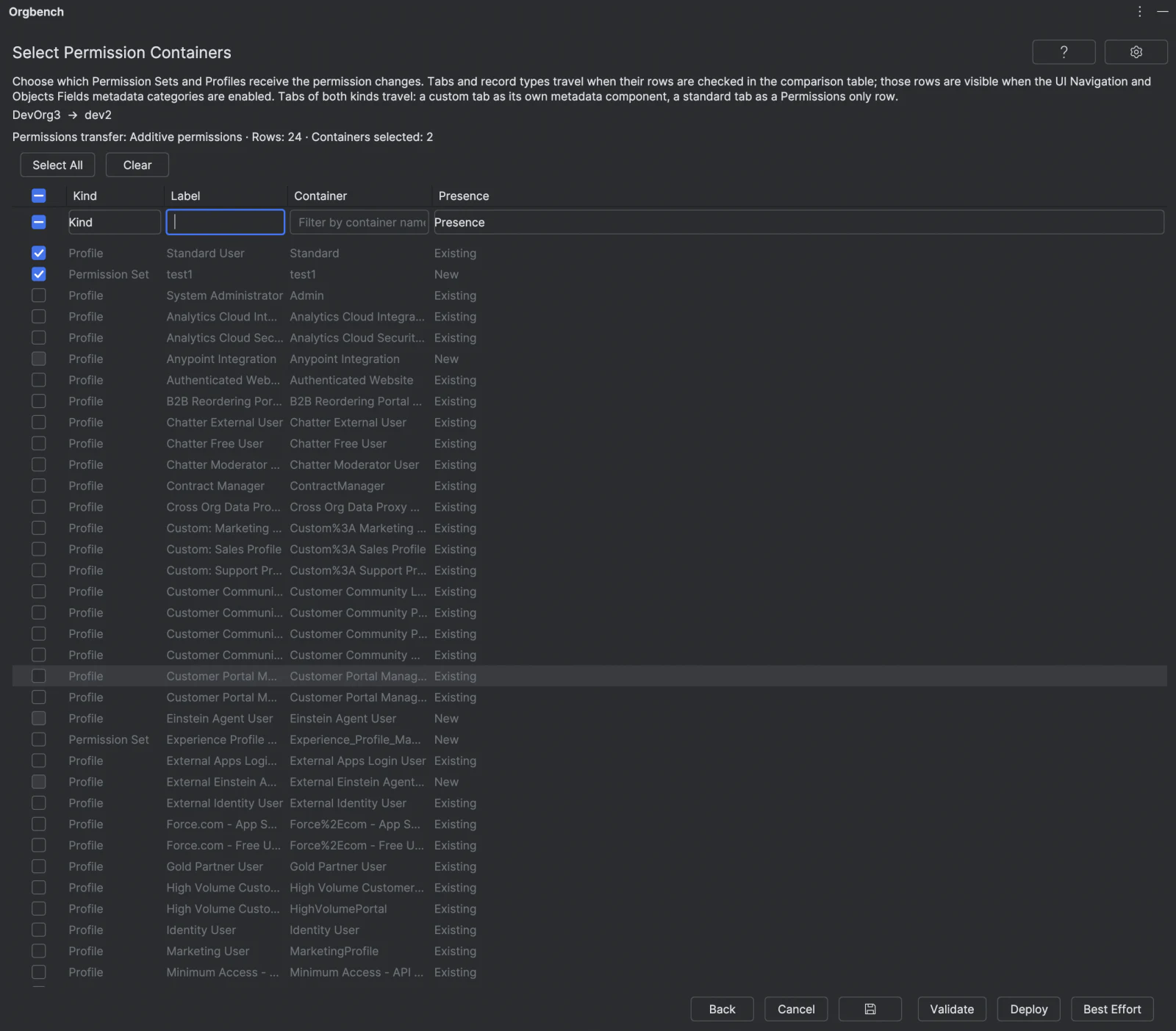
The transfer covers six kinds of permission, and which of them a deployment touches is decided by the rows you check in the comparison table: a custom field row transfers its field-level security, a custom object or platform event row transfers the seven object permissions of that object — create, read, edit, delete, View All Records, View All Fields and Modify All Records — an Apex class row transfers access to that class, a Visualforce page row transfers access to that page, a custom tab row transfers that tab's visibility, and a record type row transfers whether that record type is visible. Nothing else is transferred — user permissions, application visibilities, custom permissions, licenses and layout assignments are left exactly as the target has them. A standard object's own CRUD is transferred through a Permissions only row, and so is the field-level security of managed and standard fields — see Rows that carry permissions but no metadata below.
Two boundaries are worth naming before you rely on the last two kinds. The default record type of the target is never changed by a transfer. Only visibility travels; <default> and <personAccountDefault> are read from the target document and written back verbatim, in every mode, so a transfer can neither set nor clear which record type an object defaults to. When the target's own record type is already the container's default and the source wants it hidden, nothing travels either: against an org target that row is Skipped with a message naming the default, and the target node is left untouched. And tabs of both kinds are transferred: a custom tab travels as its own metadata component, while a standard tab such as standard-Account travels as a Permissions only row whose name is the permission entry itself. Tab and record type rows are visible only when the UI & Navigation and Objects & Fields metadata categories are enabled in the settings; with the default settings they do not appear at all.
Rows that carry permissions but no metadata
A permission is an administrator's own configuration, not the property of a managed package or of the platform — so the comparison table lists managed and standard components too, and checking one of those rows transfers its permissions without transferring the component. Such a row spells out what it will do in the Diff column (IntelliJ) or the Details column (VS Code):
- Permissions only — nothing at all is deployed for this row. Managed Apex classes, Visualforce pages, tabs and record types, managed objects, standard objects and standard tabs all get this. The row exists so that its permission can be selected; it has no document, so double-clicking it opens no comparison window.
- Tracking only — the row is a managed or standard FIELD, and the only metadata that travels is the two history-tracking toggles, Track History and Track Feed History. They are merged into a fresh copy of the target's own field document read at deploy time, so the field's label, type, length, formula and picklist values stay exactly as the target has them. Those two toggles are also the only thing such a row compares on: a managed field whose label differs merely because the two orgs run different package versions reports No change, because that difference is not something the plugin can or should move.
- A row without either label deploys its document exactly as it always has.
Standard tabs are listed from the org's own tab definitions rather than from the metadata listing, which does not carry them, and their name is the permission entry itself (standard-Account). Standard fields of an object appear once that object is selected on the first screen; a field of an object you did not select never produces a row.
Two boundaries stay in force and are worth stating plainly. The DEFINITION of a managed or standard component is still never deployed — no object definition, no field definition, no class body — and no such row can be edited in the diff view. And object-level settings are not deployed either, which is where the one troubleshooting case comes from: enabling Track History on a field of an object whose target org has history tracking switched off is refused by Salesforce for that one component, with the org's own words — The entity: Account does not have history tracking enabled. The fix is on the target and it is manual: switch history (or feed) tracking on for that object in the target's Setup, then deploy the row again. The same applies to the per-object cap on tracked fields, which Salesforce reports as exceeded the allowed number of fields to track on a given entity; both are single-component rejections and neither stops the rest of a Best-effort deployment.
The Permissions transfer setting offers three choices:
- Do not transfer permissions is the default and deploys selected metadata without retrieving or changing any permission.
- Additive permissions transfers source access for the selected rows without revoking existing target access. Every flag is merged independently with OR semantics, so the result is the union of normalized source and target access.
- All permissions fully synchronizes each selected eligible row to normalized source access in every matched container, so it can grant or revoke access.
Additive permissions and All permissions include selected No change rows immediately and selected Add or Update rows only after their metadata deployment result is Succeeded. A selection containing only No change rows skips component deployment entirely. The plugin matches source and target standalone Permission Sets by metadata full name and Profiles by metadata full name. That full name is the API name of the metadata document, which for many standard profiles is not the label Setup shows you: the profile labelled Standard User is Standard, System Administrator is Admin, and a profile whose label contains : or . carries a percent-encoded full name such as Custom%3A Marketing Profile. Both names are shown — the label in a Label column and the full name in the Container column — and only the full name is ever used to match, retrieve, package and merge; the label shown is the target org's for a matched container and the source org's for a newly creatable Permission Set, so it is always the label you would find by opening Setup on the org that ends up holding the permissions. Namespaced permission containers are excluded, and so is a Permission Set Group: a group is a metadata component of its own — comparable and deployable since the Security & Sharing types were added — but it is never a permission container, because permissions live in the sets it lists rather than in the group. This is also why standard profiles now appear on the container-selection screen at all: matching them required resolving the profile's full name, which a Setup-facing profile display name alone did not give. They list as Existing containers exactly like any custom Profile, and — like every selectable container — start checked, so an All permissions run writes into a standard profile unless you deselect it first.
Choosing Additive permissions or All permissions and Next opens a container-selection screen listing every eligible container: Existing containers matched by kind and API name in both orgs, and New Permission Sets that exist only in the source and are eligible for creation. Each row shows its label in a Label column, its metadata full name in the Container column, and its presence in an Existing/New column; the label and the full name each have their own substring filter, and the presence is filtered with the Presence column's multi-select, which shows both values by default. The permission result table carries the same Label and Container pair. Select All and Clear apply only to the currently visible, filtered containers. Every selectable row starts checked — every Existing container and every New Permission Set; a New Profile is listed for information only, with its checkbox disabled, because Profiles are never created. Deselect any selectable container to exclude it from this deployment. A Permission Set you checked as a row of the comparison table is not offered for selection here: its whole document is being deployed as metadata, which replaces that container in the target, and letting the permission transfer write the same file in the same deployment would mean two authors of one document. The core itself drops that container from the deployment before it is sent, independent of what the client displayed or selected, so no client mistake can produce two authors of one file. Such a container stays on the list with its checkbox disabled, exactly as a source-only Profile does, so you can see it was excluded rather than wonder where it went — and, exactly as for a source-only Profile, no reason is shown for it. A container that is left unselected is reported Skipped with "Not selected for permission transfer."; this is an additional, user-driven Skipped reason alongside target-only, namespaced, and other ineligible exclusions, and it does not change any other result semantics. A container the user did not choose is never reported Failed: an ambiguous duplicate identity, hidden from this screen because it cannot be individually selected, still reports Skipped with its own "Ambiguous source/target permission container API name." reason rather than a false Failed, exactly as any other unselected, ineligible container keeps its own reason.
The plugin retrieves both copies of each matched Permission Set/Profile and uses the target XML as the merge base. The retrieve manifest names every selected subject explicitly — the fields, the objects, the Apex classes, the Visualforce pages, the custom tabs and the record types — so a target Profile comes back with its real permissions instead of Salesforce filtering it down to empty lists. All selected rows for that container are accumulated into one metadata document. Only their own fieldPermissions, objectPermissions, classAccesses, pageAccesses, tab and recordTypeVisibilities entries are merged according to the selected mode; unrelated target entries of those same kinds, and every other target metadata node, remain intact byte for byte. A Permission Set spells tab visibility as tabSettings with Visible/Available/None while a Profile spells it as tabVisibilities with DefaultOn/DefaultOff/Hidden; the plugin reads and writes each container in its own vocabulary and shows you one normalized value. Against an org target, if a tab carries a visibility value this version does not recognize, that row is Skipped with the value quoted in its message and the target entry is left untouched; against a git target merge_container_documents keeps only the merged document and discards the reasons channel, so neither this nor the default-record-type outcome produces a result row there. Edit access implies read access, formula fields are normalized to editable=false, and required fields are skipped because Salesforce does not support field-level security for them.
In Additive permissions, an absent or narrower source entry never removes or reduces target access. In All permissions, an absent source entry means no access at all, so synchronization removes the corresponding target entry — with one deliberate exception for the two kinds whose "no access" the org spells out explicitly. For a tab or a record type, an existing target entry is kept and rewritten to the explicit no-access value (None in a Permission Set, Hidden in a Profile, visible=false for a record type) instead of being removed, because removing the entry would leave the target untouched rather than narrowed: a deploy does not change what the document does not mention. So a tab hidden in the source does become hidden in the target, and the entry stays visible in the deployed document. If the target has no such entry at all, there is nothing to narrow and none is created. Target-only containers are Skipped; the plugin never deletes a target-only container. A source-only Profile is also Skipped, because Profiles are never created. A source-only, non-namespaced Permission Set is classified New; when selected, the plugin may create a Permission Set in the target when it is missing there, populated with only the selected rows' permissions — the field-level security, object CRUD, Apex class access, Visualforce page access, tab visibility and record type visibility you checked, and nothing else: never a license, never a user permission, never an application visibility, and never a Profile. Profiles that do not exist in the target are not created. A selected row whose desired access already matches the target is also Skipped because it requires no deployment.
All permissions can make destructive changes (access revocations) only for a unique, non-namespaced source-and-target container match by both kind and API name. Target-only, namespaced or otherwise ineligible, required-field, and no-op outcomes are Skipped; a source-only Profile is also Skipped, but a selected source-only, non-namespaced Permission Set is instead created in the target and reported Updated. Ambiguous duplicate container identities and Salesforce deployment rejections are Failed, but ambiguity yields Failed only for a container the user actually selected on the container-selection screen; an ambiguous duplicate the user did not choose is Skipped with the same "Ambiguous source/target permission container API name." reason instead, because nothing was attempted for it. In the permission results table, the Status column filter hides Skipped rows by default; check Skipped in that column's filter to reveal them.
Changed Permission Sets and Profiles are first submitted together in one aggregate Metadata API deployment. A component-specific failure causes recursive splitting by container until the failing Permission Set/Profile is isolated; the plugin never splits one container's accumulated field changes into per-field deployments. A container is reported successful only after a deployment containing that component succeeds. Fatal authentication, authorization, CLI, network, workspace, cancellation, or response errors stop further scheduling. Updated means an actual permission-metadata change was deployed; no-op rows are Skipped. There is no rollback across separate successful fallback deployments.
Before any of that scheduling starts, the plugin has to read the Permission Set/Profile catalog itself — the SOQL query that lists candidate containers and the metadata inventory that tells, from that same response, both which of them can actually be retrieved and, for the ones the org's metadata Id resolves, their own metadata fullName (the container's identity). Each of those two read-only calls is retried once on a failed CLI response; a cancellation is never retried, and it still stops the whole operation like any other cancellation. In Best-effort mode against an org target, if that early catalog read still fails after the retry, the permission step does not take the metadata report down with it: every component of the package above keeps its own result row, and every permission/container pair that would have gone through it is instead reported Not Attempted, with the sanitized failure message available in Show Details. In Validate only and All or nothing, and against a git target, the same catalog failure stops the whole operation before anything is deployed or committed.
The permission result table's column filters do not change the counters. The Status column filter defaults to Updated, Failed, and Not Attempted checked and Skipped unchecked; check Skipped to include it, or uncheck any of the other three statuses to narrow the view further.
Safety Boundaries
- Salesforce authentication remains in the local Salesforce CLI. The plugin does not request, persist, or display access tokens, refresh tokens, passwords, or auth URLs.
- CLI commands are executed directly as argument lists, not through a shell. Diagnostics are sanitized before display or copy.
- Namespaced metadata is never DEPLOYED as metadata, and since task 16 that is a statement about the deploy, not about the table: a namespaced field, object, Apex class, Visualforce page, tab or record type does get a comparison row, because a row is how its permission is selected, but its own definition is never compared or deployed. Ordinary custom names such as
Field__cremain eligible for a full metadata deployment. Permission Sets and Profiles have no such row at all — they are containers, matched and synchronized on their own screen, not deployed as metadata. A namespaced object's own definition is excluded the same way — never compared, never deployed — but the object itself is listed and selectable, because it is the only gate through which its unmanaged fields and other unmanaged children can be selected, and, since task 16, through which its own CRUD can be selected too. - An object is created in the target only when its
CustomObjectAddrow is checked in the comparison table — either by you or automatically as a visible dependency of a component you checked; the auto-check can be removed, and the object creation is always visible in the table before the deployment. Target-only fields are never deleted, and standard-object metadata is never deployed as metadata: the standard object's own definition is never sent, and neither is a standard field's definition. Exactly one exception exists and it is narrow by construction: a standard field's two history toggles,trackHistoryandtrackFeedHistory, deploy spliced into a fresh copy of the target's own document — everything else about that field stays exactly as the target has it. Page Layouts and the types stored inside an object's folder (list views, record types, validation rules, field sets, compact layouts, business processes, indexes, sharing reasons, web links) are the deliberate exceptions — those of a standard object are compared and deployed, because they are the admin's own configuration rather than the object definition. - Deploying one child of a container document — an assignment rule, an auto-response rule, an escalation rule, a sharing rule or a custom label — never removes the other children of the same container. The package carries only the children you selected, and the Metadata API leaves the rest in place; against a git target the plugin merges the selected children into the branch's own copy of that file, so a rule or a label that exists only in the repository survives the deployment.
- What a deployment may remove from a layout depends on the Page Layouts setting, and in both modes it is visible in the table before you deploy. In the default whole-layout mode a layout deployment replaces the target document with the source document, so elements that exist only in the target are gone afterwards — the same Metadata API semantics as for a bundle. In the element mode nothing is replaced wholesale except a selected related-list
Updaterow: columns, sort field, sort order and buttons are all overwritten, so anything present only in the target's copy of the same list is gone after the deployment, and that related list is the only place where the element mode removes content from a layout; everything the merge did not touch is preserved by construction, and elements that exist only in the target are never removed. In neither mode is a target-only layout touched: a layout that is missing from the source produces no row at all. - Deploying a flow creates a new version in the target and never deletes or deactivates an existing version. The target's active version is replaced exactly when the source flow's
<status>isActive, because the status is transferred verbatim and is visible in the comparison row before the deployment — except for a row whose document was edited, markedEdited, where the status that deploys is the one in the edited document rather than the one the row shows. - An edited document is the sole case where the deployment sends content that exists in neither the source nor the target org — it is an edited increment stored in the comparison's temporary workspace. The edit is visible and removable before the deployment, stored and destroyed with the session, and never widens what the deployment would send (it does not select an unselected row or remove any safety boundaries). It removes exactly one: an object created from an edited row is created from that edited document rather than from the minimal synthesized one, for that row and that comparison only.
- Optional permission synchronization is limited to selected metadata-identical rows plus selected rows whose metadata deployment succeeded. For an Existing container it merges only those rows' own
fieldPermissions,objectPermissions,classAccesses,pageAccesses, tab andrecordTypeVisibilitiesentries into target-based Permission Set/Profile metadata, and only for the containers the user selected on the container-selection screen; deselected containers remain untouched and are reportedSkipped. The plugin may create a Permission Set in the target when it is missing there, populated with only the selected rows' permissions — never a license, never a user permission, never an application visibility, and never a Profile. Profiles that do not exist in the target are not created. The default record type of the target is never changed by a transfer, and tabs of both kinds are transferred: a custom tab as its own metadata component, a standard tab as a Permissions only row. - The IntelliJ system directory is the explicit local filesystem trust boundary. The plugin parent is its direct child
orgbench; operation workspaces below it contain no credentials. On Windows the plugin parent and descendants are created with owner-only ACLs. Workspaces are closed after handled success, failure, cancellation, Back, New Comparison, or project disposal. If cleanup fails, the error is surfaced and the owned workspace is retained for another cleanup attempt on reload or close. - Manifest export and import (
package.xml) still live in the plugin core with the same guarantees as before — Session Export is the more capable, supported way to reach the same round trip today, so neither client's UI exposes a manifest button any more. When exercised, import changes only the local selection: it never touches either org beyond the standard source-org component listings, namespaced members are never imported — a managed-package object member is not one, it imports as its unmanaged fields and never as an object definition — and it rejects aDOCTYPEdeclaration or a file larger than 5 MB outright; a standard object's imported fields also derive that object's ownCustomObjectmanifest member — the same derivation a live selection performs — so the import summary carries both, even though the object's own definition can never be deployed and the derived member resolves to nothing more than a Permissions only row; any failure leaves the previous session manifest in place. - Importing a session scenario only changes local selections, never a live org or repository beyond the source-org component listings a restored manifest is checked against. A rejected endpoint, an unmatched manifest member, or an unmatched comparison or container row leaves the prior manifest and prior endpoints exactly as they were and is reported instead of guessed at. The absolute path of a git repository never reaches the scenario file, so a git endpoint can never be restored from one — it is left untouched, with a warning, same as any other unmatched name.
- Every deploy mode sends the whole metadata selection as one Metadata API deployment — except the two narrow retry paths in Best-effort against an org target, described above: one Permission Set Group retry call and at most three Context Definition retry calls; separate successful permission fallback deployments are not rolled back when later work fails. Always review both result tables before treating an operation as complete.
- Preparing the orgs is the only operation that changes the SOURCE org. It writes only the external-key value on each object — its own
OrgbenchExternalId__cfield, or an already-existing CUSTOM external-ID field BOTH orgs carry for that object, when one is found — a standard field flaggedexternalIdis never accepted — plus field-level access to a newly created field on the running user's profile in both orgs; no other data changes and no record is ever deleted. It runs as a separate command behind an explicit confirmation that names both orgs, and is never part of a deployment. A record that already carries the key is not changed, so running the command again changes nothing. - Automated tests use fixtures and fakes; the default Gradle test task does not connect to a Salesforce org.
- Automated orchestration tests cover the single-package Best Effort path (
--ignore-errors, per-row isolation of a component that cannot even be packaged), aggregate permission deployment, container-level permission fallback, fatal stop, andNot Attemptedordering. The manual guide deliberately validates one real field component failure without intentionally causing an authentication or network failure against a live org.
All four tables — object selection, component review, permission container selection, and both result tables — share one filterable layout: a header row, an aligned per-column filter row beneath it, and the data. Column widths are saved globally per table in IntelliJ application properties after a header resize; the compact default sizes any Select column to its actual checkbox header, keeps narrow columns like Change and Status compact, and leaves the widest text column (Diff, Message) expanding. The filter row re-aligns each filter cell to its column as columns are resized. Saved table widths apply across projects and IDE restarts and are clamped to safe minimums when restored.
Licensing
Orgbench is free during early access. A paid tier for advanced features is planned; nothing is gated today, and every feature described above is available to everyone.
- The license path is fully offline. Validation is a local signature check inside the plugin's own core — there is no license server, no phone-home, and no network call of any kind, not even a revocation check. The promise that your metadata never leaves your machine covers licensing too.
- Any licensing failure degrades to the free tier and keeps working. A missing key, a key damaged by copy-paste, a key signed by someone else, an expired subscription, a strange system clock, and an unreadable state file each land on the free tier without an error dialog and without the plugin refusing to run. A write that fails while you are entering a key does not stay silent, including when the cause is a data directory the plugin could not reach or create: the status line names the reason, and the tier stays free because the key genuinely was not saved.
- Safety is never gated. Every boundary listed under Safety Boundaries applies in every tier, forever.
- The key and the first-run timestamp live in a single file the core owns, inside your user data directory —
~/Library/Application Support/orgbench/on macOS,%APPDATA%\orgbench\on Windows,$XDG_DATA_HOME/orgbench/or~/.local/share/orgbench/on Linux. Enter a key once in either editor and it applies in both, once each editor's own core has (re)started and read the file; the editors themselves store nothing, and the file never leaves your machine. - Enter or remove a key under Settings | Tools | Orgbench in IntelliJ, or with the Orgbench: Manage License command in VS Code (the key icon in the view title opens it). IntelliJ shows a read-only status line with what the core decided; VS Code shows the same status as the title of that command's own picker — either way, the reason a key was not accepted is shown, not just the tier.
Build
Use a JDK 17 runtime and the checked-in Gradle wrapper:
./gradlew test
./gradlew verifyPlugin
./gradlew buildPlugin
./gradlew buildPlugin also compiles the Rust core (sf-core-server) for macOS arm64, macOS x64, Windows x64 and Linux x64 and bundles all four under bin/ in the archive. The Windows x64 binary is cross-compiled from a non-Windows host, which needs a one-off cargo install cargo-xwin plus rustup target add --toolchain 1.97.0 x86_64-pc-windows-msvc; on a Windows host the same Gradle task calls plain cargo build. The Linux x64 binary is cross-compiled the same way from a non-Linux host, which needs a one-off brew install zig cargo-zigbuild plus rustup target add --toolchain 1.97.0 x86_64-unknown-linux-musl; on a Linux host the same Gradle task calls plain cargo build, which there needs musl-tools from the distribution. The Rust core has its own checks:
cd core && cargo test --locked
cd core && cargo clippy --all-targets --locked -- -D warnings
The VS Code extension lives under vscode/ with its own npm toolchain; ./gradlew check also type-checks and runs its node:test suite, and ./gradlew buildVsixAarch64 buildVsixX64 buildVsixWin32X64 buildVsixLinuxX64 writes the platform-specific VSIX archives under vscode/.
verifyPlugin can download the configured IntelliJ compatibility target. The installable archive is written to build/distributions/orgbench-0.1.1.zip. Build and verification do not require an authenticated org and do not run the manual live-org scenario.
Troubleshooting
The support site https://orgbench.io/ answers questions about the plugin and files a ticket; the question-mark button in the tool window header opens it on any screen — in VS Code, the question-mark icon in the view title does the same — and the error screen offers the same link. Nothing is sent there automatically — the link opens only when you choose it.
Salesforce CLI is unavailable or incompatible
Run sf version --json in a terminal. Install or update Salesforce CLI, restart the IDE, and choose Restart. The plugin automatically checks the IDE PATH plus standard install locations. If sf is installed in a custom location, add its directory to the environment used to launch IntelliJ IDEA.
The Salesforce core process did not start
The plugin launches a bundled sf-core-server binary from its bin/ directory. If the tool window reports that the core process could not start or terminated, confirm the platform is supported (macOS arm64, macOS x64, Windows x64, or Linux x64) and that the plugin ZIP was installed from disk without unpacking. Reinstall the plugin if the bundled binary is missing. On Windows the bundled binary is unsigned, so SmartScreen or the antivirus may quarantine it on first launch.
On Windows, three further messages come from the core refusing to trust its own temporary workspace rather than from a startup failure: Could not read filesystem identity means the project or IDE cache directory sits on a filesystem (FAT/exFAT, or some network volumes) that does not give files a stable unique identity; plugin temp parent is not a regular directory means that directory is a reparse point, including a cloud-sync placeholder such as an unhydrated OneDrive folder; plugin temp parent must be writable only by its owner means its access control list grants write access beyond the current user. For the first two, move the project (and, if the message names the IDE cache path, that cache) to a local NTFS volume outside any cloud-synced folder. The third one is most often a directory created directly on a drive root, which inherits a write grant for a broad group such as Authenticated Users; a local NTFS volume does not help there. Move the directory under %USERPROFILE%, or drop the inherited grant with icacls <dir> /inheritance:r /grant %USERNAME%:(OI)(CI)F.
On Windows the core also refuses a metadata path that the platform cannot store faithfully — a path segment containing :, <, >, ", |, ? or *, a segment ending in a dot or a space, or a segment whose name before the first dot is a DOS device name such as CON, NUL, COM1 or LPT1 — while macOS keeps such names as they are, so a Page Layout whose label contains : or ? is still compared and deployed there; a path that starts with a drive letter such as C: and a path segment carrying a control character are refused on every platform. A deployment into a git target stops with The repository already contains this file under a different spelling that this filesystem treats as the same name: instead of overwriting a file whose name the filesystem treats as the one being written — a different letter case, a trimmed trailing dot or space, an 8.3 short name — because that write would silently replace a colleague's file. File names containing non-ASCII characters are exempt from this check: some volumes legitimately return them from a directory listing in a different unicode form of the same name, and refusing on that would block every later update of such a file.
A component whose own metadata file path the running operating system cannot store faithfully no longer disappears and no longer fails a whole deployment batch. Its row stays in the comparison table, is not deployable, and carries the reason This component cannot be deployed from this operating system: its metadata file path '<path>' is not a safe path here. — the path there is relative to the metadata root, so it never reveals where a repository lives on disk. This covers the components the plugin was able to read: when the operating system cannot even create such a file while retrieving from an org or materializing a branch, the component never reaches the comparison table, and what you see instead is one of the named refusals below. A component whose name yields no storable path at all on the running system, such as a component named CON on Windows, is blocked the same way and carries the reason This component cannot be deployed: no safe metadata file path can be derived for its name on this operating system. The refusals that remain are named too: a git operation that stops on an unsafe path names the offending file, one that stops on an entry that is not a regular file names that entry — by its last path segment alone when the plugin was writing to an absolute location, and by its repository-relative path when it was reading a branch, and one that cannot derive a repository path for a component names the component. A source repository whose sfdx-project.json lists package directories that all fail the path check now lists those entries in the message instead of reporting only that the repository is not an SFDX project; each listed entry is sanitized first, so an absolute or drive-letter entry appears as its last segment only, control characters are replaced and credential URLs lose their user information.
No aliases are listed
Use the + button next to the Source or Target dropdown to log in to an org and create an alias without leaving the IDE, or run sf org list --json in a terminal, authenticate aliases there and choose Reload Orgs. Entries without an alias are intentionally not shown.
While a browser login is running, the selection screen stays where it is with its controls disabled, shows the live progress line and offers Cancel; cancelling stops the CLI and leaves the browser tab open for you to close. A login that is not finished within ten minutes is reported as such. In a headless or container environment the Salesforce CLI refuses a browser login outright, and the plugin reports that instead — authenticate in a terminal there.
An org alias is no longer authenticated
When the Salesforce CLI reports that it could not refresh the stored authorization it needs, or that it has no local authorization at all, the error screen says so directly instead of opening with a wall of CLI diagnostics. Where the failing org is unambiguous, the message names it — the alias you picked, for a failure while the selection screen is loading its objects or a metadata type's list; the org's username, for a failure once the comparison or the deploy is under way — and asks you to sign in again with the + button next to the Source or Target dropdown, then retry; for every other operation — including a permission transfer — the same message deliberately names no org at all rather than guess a wrong one.
Two things are worth knowing about the edges of this behavior. When a metadata retrieve is the step that first hits the problem, the screen keeps its previous wording, Salesforce operation failed., instead: what appears under Show Details there is a short built-in sentence about the exit code, never the CLI's own text the recognizer needs to see. Everywhere else the diagnostic is not thrown away — on the error screen it is collapsed by default and one click away under Show Details, which in VS Code is the Details disclosure, and what it shows is the same sanitized text as before. A failure the plugin does not recognize at all keeps its previous wording too, with its full diagnostic under the same toggle.
Source and target are rejected as the same org
Choose aliases that resolve to different org IDs. Two different alias names can still point to one org.
No components or differences are shown
Confirm that the source user can query metadata and that the component is customizable. Target-only fields are intentionally omitted. Standard and namespaced components are listed since task 16 — as Permissions only or Tracking only rows — so their permissions can be selected; their definitions still never travel. One managed shape stays hidden on purpose: a component whose packaging is visible only through manageableState, because its own name carries no namespace prefix, produces no row at all — the plugin cannot tell it from an unmanaged component by name, and a full row would deploy a managed definition. Metadata-identical fields appear as No change; by default the review Change filter hides them (only Add and Update are checked). On the first screen, the Label and API Name column filters each match a case-insensitive substring anywhere in the value, not just a leading prefix; switching Metadata Type loads that type's own component list without discarding selections already made for other types. If loading an org's components failed outright, you are on the error screen instead; choosing Restart there returns a selection screen where that org is no longer selected, so picking the same alias again retries the load rather than doing nothing.
Picking Custom Tabs loads standard tabs (standard-Account) through a second query, TabDefinition, on top of the ordinary CustomTab metadata listing. If that query fails — an unauthenticated source, an insufficient permission, or a transient Salesforce error — the entire Custom Tabs list fails, including the custom tabs the ordinary listing had already fetched; there is no other route to the custom tabs alone. Retry the load, and if the failure persists, tabs are unavailable entirely until whatever is blocking TabDefinition for that org is fixed — compare other metadata types in the meantime.
A target-object row is disabled
The target object does not exist. Either create the object outside this plugin and compare again, or select its custom CustomObject row in the same deployment so the object is created before its fields.
An alias changed after review
The plugin intentionally aborts before mutation if an alias no longer maps to the reviewed username and org ID. Choose Back or New Comparison and repeat the comparison.
Deployment or permission transfer has failed rows
Open Show Details for sanitized Salesforce messages. Check Metadata API permissions, field dependencies, target validation rules, and an exact match of the Container column — the metadata fullName, not the Label column, which is the Setup display name and can legitimately differ from it. Missing target containers are skipped; a failing permission component is isolated by container when Salesforce returns a component-specific failure. If every permission row is Not Attempted with the same message, the failure happened earlier, reading the Permission Set/Profile catalog itself, before any container-specific deployment was attempted; the field metadata rows above it are unaffected.
Cancellation or temporary cleanup reports an error
Choose Restart to start a fresh workflow and retry cleanup owned by the current plugin session. If the error persists, close the project after the active Salesforce CLI process has stopped and inspect the IDE system directory before removing anything manually.
Manual Validation
The live-org smoke test is intentionally separate from automated builds because it mutates Salesforce metadata and permissions. Follow docs/manual-smoke-test.md only with disposable source and target orgs, record each expected result, and dispose of the test orgs afterward.